If you own, or are thinking about buying, a Tesla Cybertruck, the single most expensive component you need to understand is the battery pack. Knowing how to check Cybertruck battery health tells you whether your truck will keep its range and towing ability years down the road, and whether a used Cybertruck is priced fairly.
Quick answer
Why Cybertruck battery health matters more than you think
Cybertruck’s massive high‑voltage pack is the heart of the truck. It powers acceleration, towing, off‑road capability, and even vehicle‑to‑load features like onboard outlets. Over time, all EV batteries lose some usable capacity, known as degradation. For an everyday commuter car, a modest drop may feel like an annoyance; for a heavy, angular pickup with big range claims, it can make the difference between an easy road trip and a stressful one.
- A healthier battery preserves real‑world range and towing confidence.
- Battery health strongly influences resale value and financing terms on used EVs.
- Out‑of‑warranty battery repairs can easily run into five figures.
- Early Cybertruck owners have already reported faster degradation when relying heavily on Superchargers, compared with mostly home charging.
- If you’re shopping used, battery health can turn a “deal” into an expensive mistake, or a smart buy.
Reality check
How Tesla actually measures Cybertruck battery health
Before you start poking through menus, it helps to understand what “battery health” means in Tesla’s world. Under the skin, your Cybertruck tracks the State of Health (SoH) of the pack, an estimate of how much usable energy remains compared with when it was new. Tesla doesn’t prominently label this as a percentage for owners, but it exposes the data in a few ways.
Four ways Cybertruck exposes battery health
You rarely see “SoH 94%” on screen, but the system is constantly tracking it.
Rated range at 100%
The simplest proxy for battery health is the rated range shown at 100% charge. As usable capacity shrinks, that number slowly drops.
Battery Health Test
Recent Tesla software includes a Battery Health Test in Service Mode on many models. It runs a controlled charge/discharge routine and calculates pack health versus new.
Tesla app diagnostics
The Tesla app can show whether your battery is considered healthy, and in some versions, the results of a recent health test.
Driving & charging behavior
Patterns like frequent DC fast charging, extreme temperatures, and high average state of charge affect how quickly SoH declines over time.
What about official documentation?
How to check Cybertruck battery health on the center screen
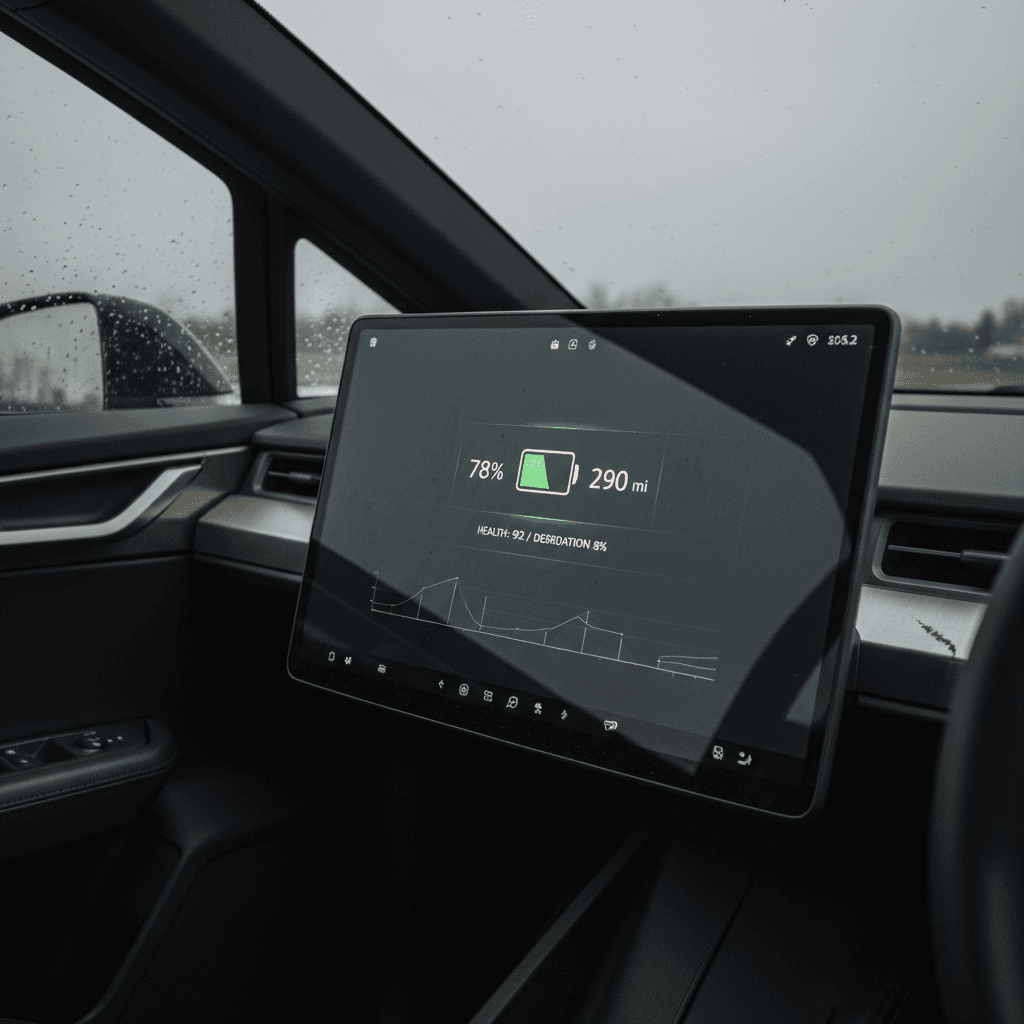
Your Cybertruck’s center display is the easiest place to start. It won’t show a big “Battery 93% healthy” banner, but it gives you two clues: rated range at a given state of charge, and trend lines over time if you pay attention.
Step‑by‑step: Quick battery health check from the screen
1. Switch to distance (miles) view
On the main display, make sure the battery indicator shows <strong>miles of range</strong>, not just percentage. This makes it easier to compare to original specs and other owners’ reports.
2. Note range at (or near) 100%
Charge to 90–100% on a <strong>Level 2 charger</strong> at a moderate temperature. Once the charge settles, note the rated range. Compare it to what Tesla listed when the truck was new for your trim (for example, Cybertruck All‑Wheel Drive vs Cyberbeast).
3. Compare to a baseline
If you’ve had the truck since new, look at early photos or delivery screenshots to see what it showed at 100%. A drop of a few percent over the first year is normal; double‑digit losses early may justify a deeper test.
4. Watch consistency over weeks
Repeat the check every couple of months with similar conditions. A stable number suggests healthy, predictable degradation. A sudden drop without a software update or climate change is worth investigating.
5. Pay attention to range estimate behavior
If the range estimate swings wildly or drops unusually fast on the highway compared with before, that can be another sign the pack has lost usable capacity, or that your driving conditions have changed.
Pro tip: document everything
How to see Cybertruck battery health in the Tesla app
Tesla has steadily pushed more diagnostics into the mobile app. Depending on your software version and region, you may see explicit battery health information tied to a service request or a prior health test.
Check Cybertruck battery health with the Tesla app
1. Update the Tesla app first
Make sure you’re on the latest version of the Tesla app. Newer diagnostics, including battery health information, often require an up‑to‑date app, not just vehicle software.
2. Open Service in the app
From the home screen, tap <strong>Service</strong>. Choose categories like <strong>Battery & Charging</strong> or <strong>Range</strong>. Some versions walk you through questions and then run a background diagnostic.
3. Look for battery health messaging
After a short diagnostic, the app may report whether your <strong>high‑voltage battery appears healthy</strong> or if Tesla recommends scheduling service. On some vehicles, it will surface results from a recent in‑car Battery Health Test.
4. Save any numeric results or graphs
If the app shows more than “battery is healthy,” take screenshots and note the date and odometer. These can support warranty discussions or help a future buyer understand your battery’s history.
5. Don’t panic about one message
Remember, the app’s check is conservative. A single message suggesting reduced range or recommending service doesn’t automatically mean the pack is failing, but it does mean you should dig deeper instead of ignoring it.
Why app and screen numbers may not match
Using Service Mode for a deeper battery health test
For many 2025+ Teslas, including Cybertruck, Tesla added a Battery Health Test inside Service Mode. It’s the closest you can get to an official SoH measurement without a technician plugging in. However, features come and go with software updates, and Tesla has already changed how visible the health test is in some versions.
Important safety note
How to run a Battery Health Test (when available)
1. Park safely and plug in
Park your Cybertruck on level ground, keep it in <strong>Park</strong>, and plug into a reliable Level 2 charger. You’ll want the truck to stay connected and undisturbed for the duration of the test.
2. Enter Service Mode
On the center screen, tap the vehicle icon, then navigate to <strong>Software</strong>. Press and hold the model name area and enter the Service Mode PIN (commonly provided in Tesla documentation or by service). Your screen will reboot into a technician‑style interface.
3. Find the High Voltage battery menu
In Service Mode’s left‑hand menu, look for sections like <strong>High Voltage</strong> or <strong>Battery</strong>. On many vehicles, you’ll see a <strong>Battery Health Test</strong> option here.
4. Review prerequisites and start the test
Tesla typically requires a certain state of charge (often around mid‑pack), a plugged‑in charger, and stable temperatures. Once the truck confirms conditions are met, tap <strong>Start</strong> and leave the vehicle alone while it runs the procedure.
5. Wait for the test to complete
The health test can take a while, anywhere from under an hour to several hours, depending on software and conditions. Plan to leave the truck parked and avoid opening doors, moving the vehicle, or interrupting charging.
6. Record the results
When finished, Service Mode will display a result summarizing your pack’s health versus new. Capture screenshots or photos, and exit Service Mode. In many cases, the result also syncs to your Tesla app.
Software changes to battery tests
Third‑party tools and professional battery diagnostics
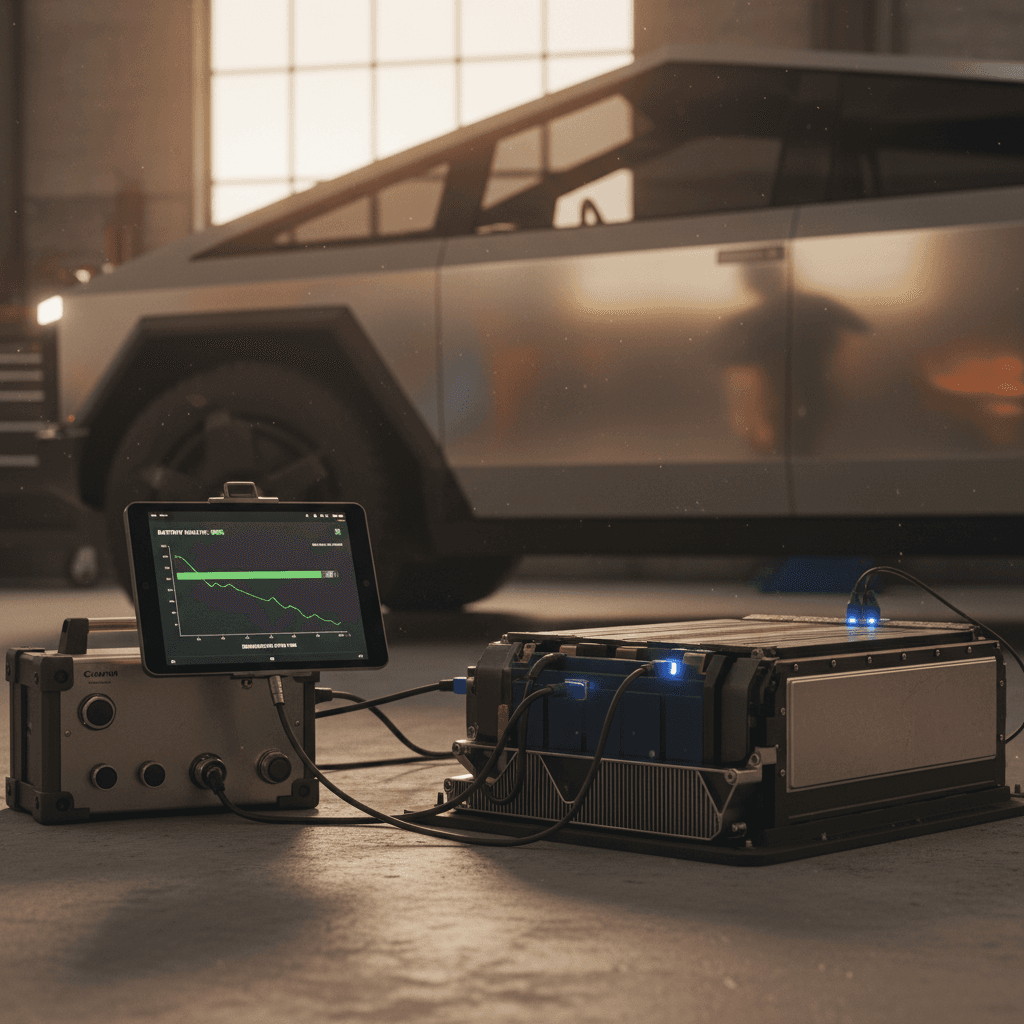
If you’re evaluating a used Cybertruck, or you just want independent verification of what Tesla is telling you, third‑party tools and professional inspections can dig deeper into your battery’s real condition.
Ways to get an independent Cybertruck battery read
From DIY data charts to professional health certificates.
Data‑driven apps & loggers
Some owners use data services that read Tesla logs and estimate State of Health based on pack voltage, energy usage, and charge history. These can be helpful trend tools but require technical comfort, and results vary by service.
Professional battery health reports
Specialist services, like the Recharged Score included with every vehicle on Recharged, run dedicated tests and diagnostics to produce a verifiable battery health report that buyers, sellers, and lenders can rely on.
Tesla service inspection
You can schedule a visit with Tesla and request a battery evaluation or ask about unusual range loss. They may run internal tests and determine whether your pack falls within warranty expectations.
Why professional verification matters for used Cybertrucks
How to interpret your Cybertruck battery health results
Once you’ve gone to the trouble of checking battery health, you need to know what the numbers actually mean. There’s no magic single threshold, but there are sensible ranges and context you can use to decide whether to relax, adjust your habits, or escalate with Tesla or a seller.
What Cybertruck battery health numbers usually mean
Approximate guidelines for interpreting SoH percentages or equivalent range loss.
| Estimated battery health / range loss | What you’ll notice | What to do |
|---|---|---|
| ~98–92% (0–8% loss) | Little to no practical impact. Range and towing feel close to new. | Consider this normal early‑life degradation. Keep good charging habits and track trends yearly. |
| ~91–85% (9–15% loss) | Slightly shorter road‑trip legs, especially at highway speeds or when towing. | Adjust charging stops on long trips. If loss came on gradually, it’s likely still normal. If it felt sudden, consider a health test and service inquiry. |
| ~84–75% (16–25% loss) | Noticeable loss of flexibility. More frequent stops or compromises when hauling or towing. | On a relatively low‑mileage Cybertruck, this is worth a serious conversation with Tesla or a seller. On a high‑miler, it may be acceptable if price reflects it. |
| Below ~75% (>25% loss) | Major impact on capability and resale value. | Treat this as a red flag without a deep diagnostic and a steep price adjustment or warranty remedy. |
These are general consumer guidelines, not official Tesla thresholds. Always combine them with real‑world driving impressions and professional advice.
Remember Tesla’s warranty context
Habits that protect (or destroy) Cybertruck battery health
Checking battery health is only half the story. The way you treat your Cybertruck day‑to‑day has a meaningful impact on how quickly that number declines. The good news is that you don’t have to baby the truck; you just need to avoid a few predictable abuse patterns.
Everyday habits that shape Cybertruck battery life
Lean into the left column, avoid living in the right.
Habits that help
- Favor Level 2 or home charging for routine use.
- Keep daily charge limits around 70–85% unless you need more for a trip.
- Avoid letting the battery sit near 0% or 100% for days at a time.
- Precondition the truck when it’s very hot or cold before fast charging.
- Give the truck time to cool after heavy towing before a DC fast charge.
Habits that hurt
- Relying on Superchargers for nearly all charging, especially in heat.
- Frequently charging to 100% and letting the truck sit full overnight.
- Storing the truck long‑term at very low or full charge.
- Ignoring software updates related to battery management.
- Parking in extreme heat without shade for extended periods.
Road‑trip exception
Buying a used Cybertruck? Battery health checklist
If you’re shopping for a used Cybertruck, especially in the first few model years, you should treat battery health as a core part of your inspection, right alongside panel fit and service history. Early trucks have already seen software changes, recall work, and in some cases even pack replacements. A structured approach keeps you from missing something important.
Used Cybertruck battery health checklist
1. Ask for a recent battery health report
Request documentation of a recent <strong>Battery Health Test</strong> or an independent diagnostic. If a seller has a Recharged Score or similar report with verified battery health, review it carefully.
2. Verify rated range at high state of charge
Have the seller show you the truck charged to 90–100% in moderate conditions. Note the <strong>rated range</strong> on the screen and compare it with what you’d expect for that trim and mileage.
3. Review charging history
Ask how the truck has primarily been charged: mostly home Level 2, mostly Superchargers, or a mix. A history of heavy DC fast charging is not an automatic deal‑breaker, but it should be reflected in the price and your expectations.
4. Check service and recall records
Look for any notes about <strong>battery replacements</strong> or high‑voltage issues. A properly documented replacement can actually be a positive, but vague notes with no explanation are a red flag.
5. Test real‑world range
On a test drive, start at a known state of charge and drive a predictable loop at highway speed. Compare miles driven to % of battery used. It won’t be perfect, but major discrepancies may justify a formal test.
6. Consider marketplace protections
Buying from a platform like <strong>Recharged</strong> gives you a used Cybertruck with a <strong>Recharged Score Report</strong>, verified battery health diagnostics, and transparent pricing that already accounts for battery condition.
Tesla Cybertruck battery health FAQ
Frequently asked questions about Cybertruck battery health
Key takeaways: Cybertruck battery checks made simple
Your Tesla Cybertruck’s battery is both its superpower and its biggest long‑term question mark. You don’t need to be an engineer to stay ahead of it, you just need a plan. Use the center screen and Tesla app for quick, regular checks, turn to Service Mode’s Battery Health Test when it’s available, and rely on professional diagnostics any time serious money is changing hands on a used truck.
If you’re already an owner, build good habits around charging and document your range a couple of times a year. If you’re shopping for a used Cybertruck, insist on battery transparency. A marketplace like Recharged does the heavy lifting for you with a Recharged Score Report that verifies battery health, aligns pricing with real‑world condition, and backs it up with EV‑specialist support from first click to delivery.