If you own, or are thinking about buying, a Tesla Model 3, you’re not just buying a car. You’re buying into a software platform that changes month after month. Understanding the Tesla Model 3 software update history helps you make sense of new features, know what to expect from different model years, and shop smarter for a used Model 3.
Quick reality check
Why Tesla Model 3 software updates matter
Four ways Model 3 updates change the car you drive
Software can affect everything from range to resale value.
Efficiency & range
Safety & driver assist
Performance & feel
User experience
Why this matters for used buyers
How Tesla Model 3 software updates work
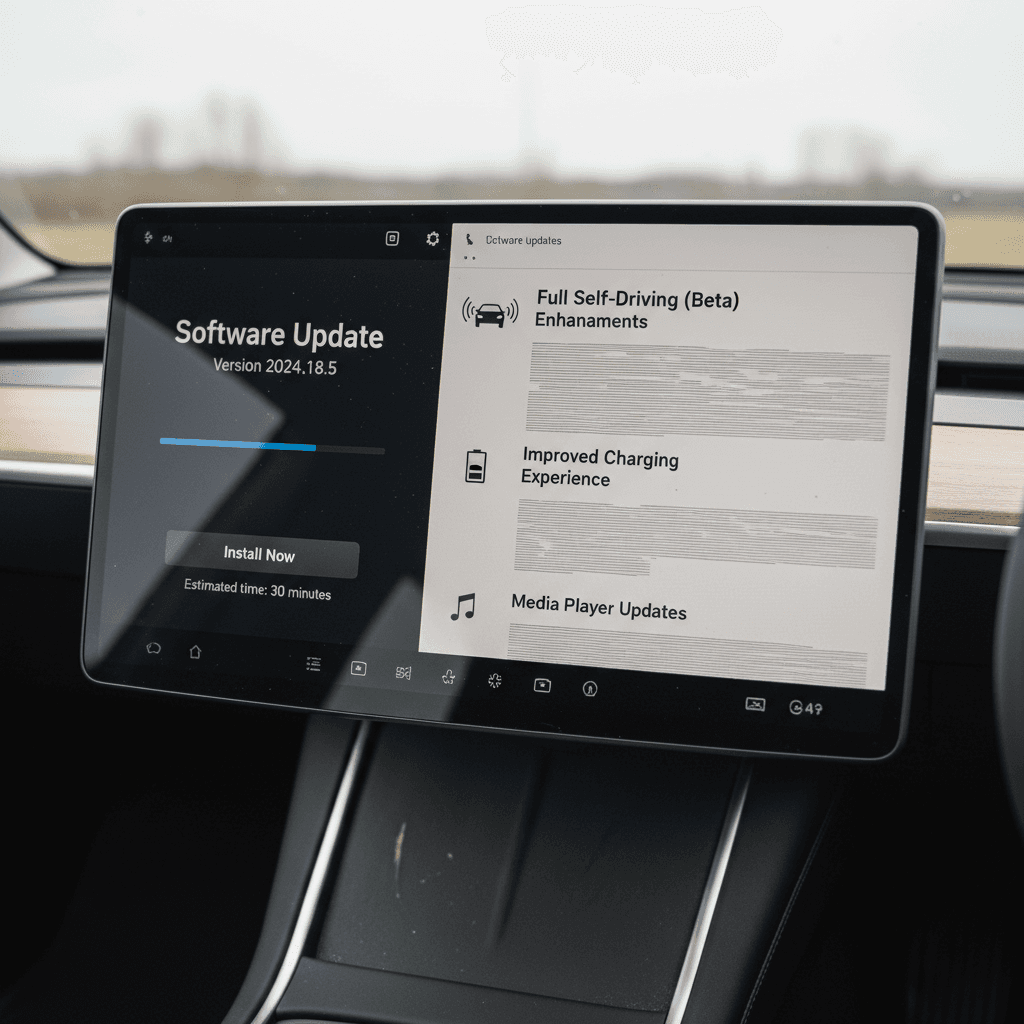
Every Model 3 supports over‑the‑air (OTA) updates. Tesla pushes new software over Wi‑Fi (and sometimes cellular), and your car downloads it in the background. Once the files are ready, you choose when to install, typically a 10–30 minute process while the car is in Park.
- When an update is available, you’ll see a notification on the touchscreen and in the Tesla app.
- Connect to a reliable Wi‑Fi network. Most major updates require Wi‑Fi to download.
- Schedule or start the install from the car or app. The car cannot be driven during installation.
- After the update, release notes appear on screen, summarizing what changed.
Don’t ignore updates
In the Software menu, you can choose “Standard” or “Advanced” update preference. Advanced doesn’t give you experimental beta access, but it puts you toward the front of the line when a given release is rolled out to the fleet.
How to read your Model 3 release notes
Every time your Model 3 installs new software, it shows a release‑notes screen. You can revisit it any time under Controls > Software > Release Notes. That’s your primary source of truth for what changed on your specific car.
Typical release note sections
- New features – things you didn’t have before (apps, visualization changes, charging features).
- Improvements – tweaks to existing features, like Autopilot behavior or trip planner routing.
- Bug fixes – vague but important stability and reliability changes.
- Regional or legal changes – speed limit behavior, driver‑monitoring requirements, or camera use.
Hidden depth most owners miss
High‑level release notes don’t list every line of code. Smaller point releases (for example, 2025.20.6 after 2025.20.3) can include critical under‑the‑hood changes that never get mentioned explicitly.
That’s why owners sometimes notice differences, like smoother lane changes or new nav glitches, even when the notes say “Minor fixes.”
Tesla Model 3 software update history by era
Instead of listing every minor build number, it’s more useful to look at the big themes that defined Model 3 software over time. Here’s a high‑level history broken into eras.
High-level Tesla Model 3 software update history by era
Major trends rather than every single version number.
| Era | Approx. years | Software focus for Model 3 | Examples of headline changes |
|---|---|---|---|
| Launch & stabilization | 2017–2019 | Core features, early Autopilot, basic apps | Initial OTA rollout, first Autopilot lane keeping, basic mobile app controls, browser and media app fixes |
| Feature expansion | 2020–2021 | New entertainment and utility features | Dashcam and Sentry Mode refinements, better phone key behavior, scheduled departure, Smart Summon refinements, more streaming apps |
| Big UI redesign & comfort | 2021–2022 | Visual overhaul and quality‑of‑life | Holiday releases with new UI layout, customizable app launcher, new visualizations, cold‑weather improvements (heated features automation), improved Trip Planner |
| Energy & charging focus | 2022–2023 | Efficiency tuning and charging intelligence | More accurate range estimates, better Supercharger routing, battery preconditioning refinements, charging limit nudges, charging‑screen redesigns |
| FSD & safety heavy | 2023–2025 | Full Self‑Driving (FSD) and Autopilot iterations | Rollout of FSD v12 and later builds, more camera‑based monitoring, lane‑keeping behavior changes, recall‑driven updates for Autopilot and braking behavior |
| Highland refresh era | Late 2023–present | New hardware plus tailored software | Tweaks for the refreshed Model 3 ("Highland"): updated climate controls, ambient lighting controls, revised suspension/steering feel via software, better camera views. |
Specific features can vary by hardware (AP 2.5 vs 3, cameras, radar) and region, but these are the big shifts owners have experienced.
Hardware matters
Recent Model 3 software trends (2023–2026)
From about 2023 onward, Tesla’s Model 3 updates have focused less on flashy new toys and more on driver‑assist behavior, charging convenience, and incremental polish. A few trends stand out if you’re looking at a late‑model or refreshed (“Highland”) car.
What recent software means for your Model 3
Especially relevant if you’re shopping 2022–2025 cars.
Autopilot & FSD tweaks
Charging quality-of-life
Regulatory-driven changes
Updates aren’t always perfect
How updates affect range and battery health
One common worry is that Tesla will "steal" range with an update. In reality, most Model 3 software changes in this area affect how range is estimated and displayed, not the physical capacity of the battery pack.
Where software really matters
- Efficiency algorithms – how the car predicts energy use based on speed, temperature, and terrain.
- Thermal management – smarter battery heating and cooling to balance performance, longevity, and energy use.
- Charging curves – how quickly the car accepts power at different states of charge, especially at DC fast chargers.
What it usually doesn’t do
A software update won’t silently remove 10 kWh from your pack. What it can do is change:
- Displayed rated range when Tesla adjusts assumptions.
- How aggressively the car protects the pack at very high or low charge levels.
- How fast the battery warms itself before a fast‑charge session.
How Recharged looks at battery health
Autopilot, FSD, and the update journey
If there’s one area where the Tesla Model 3 software update history has been dramatic, and occasionally controversial, it’s Autopilot and Full Self‑Driving (FSD). Over the years, the software has gone from basic lane keeping to far more capable city‑street navigation in some regions, all via OTA updates.
Key stages in Model 3 Autopilot & FSD evolution
Details vary by region and hardware, but these are the broad phases owners have experienced.
Early Autopilot builds
FSD betas and v12+
Safety & regulation phase
Ownership note: Autopilot & FSD changes
For used buyers, it’s critical to separate hardware capability (for example, an FSD‑capable computer) from the software license (whether the car currently has FSD or Enhanced Autopilot enabled). A software update can change behavior, but it can’t grant you paid features you didn’t purchase or subscribe to.
Software updates and used Model 3 shopping
When you’re shopping for a used Tesla Model 3, you’re buying a snapshot in a long software story. The right questions up front can save you a lot of frustration, and help you pay a fair price for the capability you’re actually getting.
Questions to ask about software on a used Model 3
1. Which software version is on the car now?
From the main screen, go to <strong>Controls > Software</strong> and note the full version number (for example, 2025.20.6). That tells you roughly where you are in the update cycle and whether the car has been kept current.
2. Are there any pending updates?
If the software screen shows an update ready to install, ask the seller to complete it before you finalize the purchase, or be sure you’ll have Wi‑Fi and time soon after delivery.
3. Which driver-assist features are active?
Confirm whether the car has <strong>Traffic‑Aware Cruise Control only, Autopilot‑style lane keeping, Enhanced Autopilot, or FSD</strong>. Don’t rely on old screenshots or original purchase paperwork.
4. Has the owner noticed any recent bugs?
Recent updates sometimes introduce quirks, nav map glitches, camera fogginess in the UI, odd Autopilot nags. A candid conversation about recent behavior can be revealing.
5. How often has the car been updated?
A car that has <strong>regularly installed updates</strong> is more likely to have the latest safety fixes and compatibility improvements than one that’s gone dormant on an old version.
6. How is battery health verified?
Ask for a <strong>third‑party battery health report</strong> or shop with a provider like Recharged that includes standardized diagnostics in a Recharged Score Report.
How Recharged simplifies this for you
Ready to find your next EV?
Browse VehiclesChecklist: Before and after every update
You don’t need to obsess over every version number, but treating updates with the same respect you’d give a major app install on your phone is smart. Here’s a simple routine that works well for most Model 3 owners.
Model 3 owner’s software update routine
1. Glance at owner reports
Before installing a major new build, skim recent posts from other Model 3 owners. If a release is especially buggy, you’ll usually hear about it quickly.
2. Plan around your schedule
Updates can take 10–30 minutes or more and disable driving while they run. Start them when you don’t need the car, ideally at home on Wi‑Fi.
3. Keep the car plugged in
If possible, leave your Model 3 plugged in during updates so the battery doesn’t need to cover the whole installation on its own.
4. Read the release notes fully
After the install finishes, take two minutes to read every line of the release notes. Look for changes that affect how Autopilot, charging, or safety features behave.
5. Test key features locally
Before a long trip, test Autopilot, parking cameras, Bluetooth, and navigation on familiar roads. If something feels off, you’ll discover it close to home.
6. Report persistent issues
If a new bug shows up and sticks around, open a service request through the Tesla app. Some issues can be addressed via remote diagnostics or future patches.
Frequently asked questions about Tesla Model 3 software updates
Tesla Model 3 software update FAQ
Key takeaways for current and future owners
The Tesla Model 3 is unusual in the car world because its software update history is a huge part of its identity. Over‑the‑air updates can improve efficiency, change Autopilot behavior, add safety refinements, and subtly alter how the car feels week to week. That’s exciting, but it also means you should treat software as a core part of ownership and shopping, not an afterthought.
If you already own a Model 3, stay plugged into Wi‑Fi, read your release notes, and give each new build a short shakedown drive before you rely on it for a big trip. If you’re shopping used, look beyond paint colors and wheel sizes. Ask about software version, update history, driver‑assist status, and battery health, or work with a partner like Recharged that bakes those checks into every purchase.
Handled thoughtfully, Tesla’s evolving software turns the Model 3 into a car that can genuinely get better with time. Understanding that history puts you in control, whether you’re updating the car in your driveway or comparing two used Model 3s on your short list.