If you’ve ever been cruising on Autopilot and your Tesla suddenly slows down for no obvious reason, you’ve experienced phantom braking. It’s unnerving, it can annoy drivers behind you, and it’s one of the most common complaints Tesla owners have about Autopilot and Full Self‑Driving. This guide walks through what really causes it, how close Tesla is to a “real” fix, and the practical steps you can take today to make phantom braking less frequent and less scary.
Quick definition
What Is Tesla Phantom Braking?
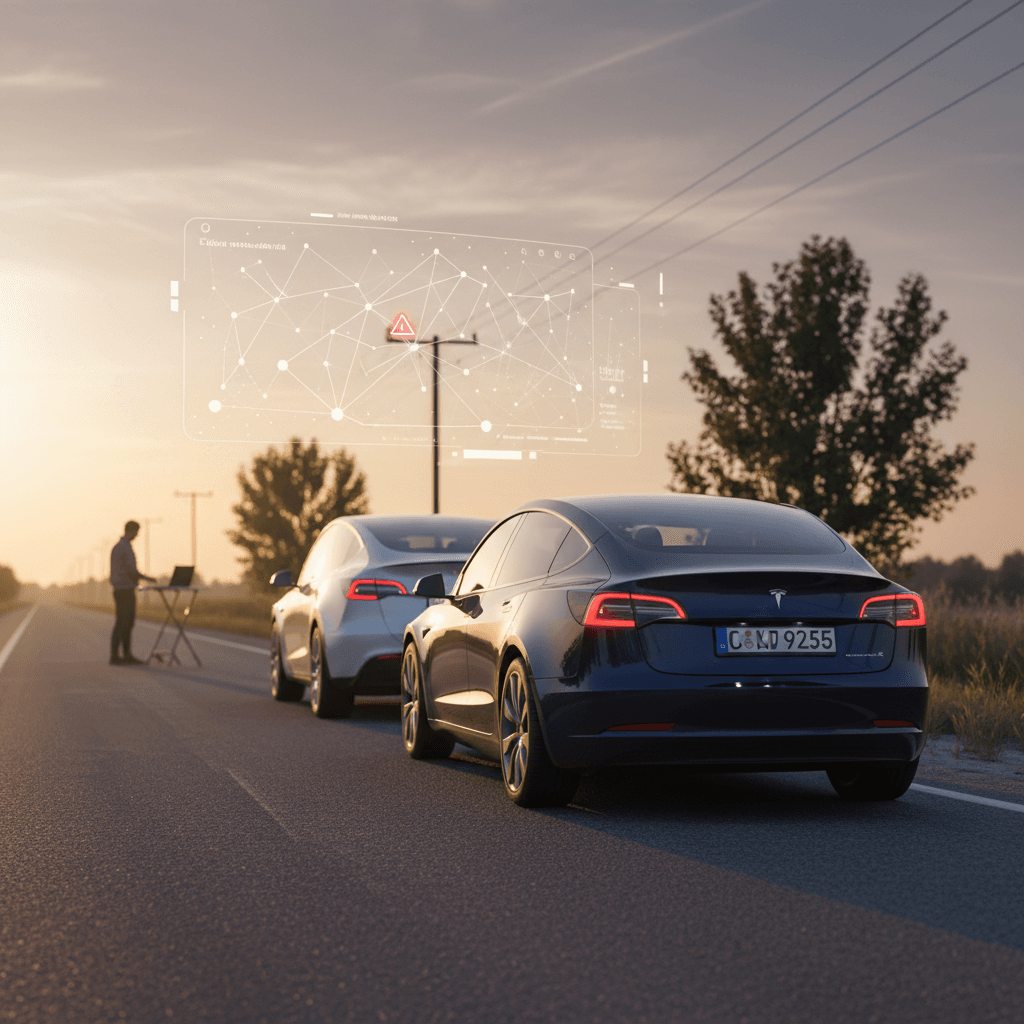
Tesla’s driver‑assist systems use cameras, ultrasonic sensors (on older cars), and software to identify vehicles, lane markings, and obstacles. When the system thinks you’re about to hit something, it can apply the brakes. Phantom braking happens when that system is overly cautious or simply misreads the scene, for example, mistaking an overhead sign or shadow for a hazard.
- Typically occurs on highways with Autopilot or Traffic‑Aware Cruise Control engaged
- Most common on newer Model 3 and Model Y vehicles that rely purely on cameras (Tesla Vision)
- Often triggered by overpasses, shadows, large trucks, or aggressive cut‑ins from other vehicles
- Feels like a quick stab or long, unnerving slowdown, even though traffic ahead is clear
Why it matters
Why Tesla Phantom Braking Happens in the First Place
The Main Technical Causes of Phantom Braking
Your Tesla isn’t “haunted”, it’s over‑cautious and sometimes confused
Camera‑only perception
Challenging road geometry
Traffic behavior & cut‑ins
Behind the scenes, Autopilot and FSD lean on a neural‑network that’s been trained on billions of miles of driving. In most situations it does a remarkable job, but in edge cases it still errs on the side of caution. That’s good when a real hazard appears, but it’s exactly what causes false positives, the heart of phantom braking.
Think like the computer
Has Tesla Actually Fixed Phantom Braking Yet?
Phantom Braking: Investigation and Updates
Tesla has rolled out repeated over‑the‑air software updates to refine Autopilot and emergency braking, and some owners report noticeable improvements. At the same time, federal regulators have kept investigations open and continue to receive fresh complaints, which tells you this is an active, evolving issue, not a fully solved one.
The honest status in 2026
Software Updates vs. Real‑World Experience
What Tesla software can do, and what it can’t, about phantom braking
| What Tesla Can Change via Software | What Software Probably Won’t Fix Completely | What You Can Control Today |
|---|---|---|
| Tune how aggressively the car reacts to perceived obstacles | Edge‑case misreads in unusual lighting or complex road geometry | When you use Autopilot and how closely you monitor it |
| Improve how well the system tracks vehicles in adjacent lanes | Every possible combination of weather, wear, and road markings | Your following distance and speed settings |
| Add warnings and stricter driver‑attention checks | Tailgaters who can’t react to your sudden slowdown | Camera cleanliness, calibration, and tire condition |
Use this as a reality check when you’re waiting for the next update.
Immediate Tesla Phantom Braking Fixes While You’re Driving
When phantom braking hits, you don’t have time to dig into menus. You need instinctive moves that keep you and everyone behind you safe. Here’s the on‑road playbook seasoned Tesla drivers use.
On‑Road Responses to Phantom Braking
1. Gently press the accelerator
A smooth press of the accelerator tells the car, “I see no danger, keep going.” This usually cancels the braking but keeps Autopilot or cruise control engaged. It’s the cleanest way to smooth out a small phantom event.
2. Disengage Autopilot if it’s severe
If the slowdown is sharp or repeated, quickly <strong>disengage Autopilot</strong> by nudging the steering wheel or tapping the brake. Take over manually until conditions are simpler.
3. Keep your foot “hover‑ready”
On roads where phantom braking is common, under overpasses, around big trucks, in heavy shadows, drive with your foot poised over the accelerator so you can override instantly without a big jerk.
4. Check your mirrors first
Before you even turn Autopilot on, glance in the mirror. If someone is glued to your bumper, that’s a bad time to rely on a system known for occasional surprise slowdowns.
5. Report the event with voice
Right after it happens, use the voice command: <strong>“Report bug: phantom braking.”</strong> That flags the exact time and location in your car’s logs and helps Tesla train the system on that scenario.
Rear‑end risk is the real danger
Tesla Settings Tweaks to Reduce Phantom Braking
You can’t code Autopilot yourself, but you can tune how aggressively it behaves. A few thoughtful settings changes can make phantom braking less intense and less frequent.
High‑Impact Settings to Adjust
Small tweaks that change how your car reacts
Following Distance
Speed Offset & Speed Limit Mode
Traffic Light & Stop Sign Control
Autosteer & FSD usage zones
Create your own “comfort profile”
Camera Recalibration and Basic Maintenance
If phantom braking has gone from “occasional annoyance” to “every single drive,” your car may not be seeing the road correctly. Cameras out of calibration, or just dirty, can dramatically increase false alarms.
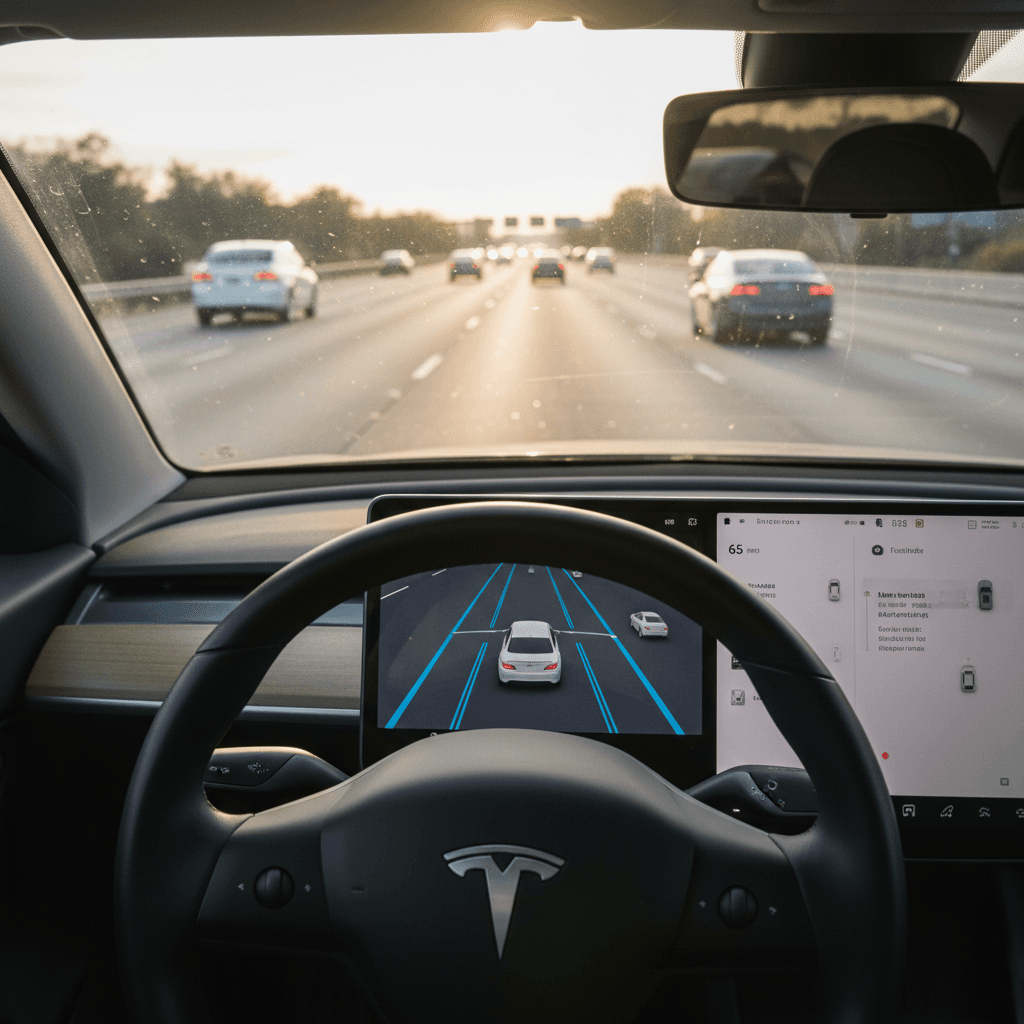
Low‑Tech Fixes That Often Help
1. Clean every camera lens
Use a soft microfiber cloth and mild glass cleaner to gently clean the windshield area and exterior camera lenses. Bugs, road grime, and water spots can all confuse Tesla Vision and trigger unnecessary braking.
2. Check windshield condition
Cracks, chips, and poor aftermarket tint near the camera area can distort what the system sees. If you’ve recently replaced a windshield, <strong>recalibrate the cameras</strong> as soon as you can.
3. Recalibrate cameras in the Service menu
On the touchscreen, go to <strong>Controls > Service > Camera Calibration > Clear Calibration</strong>. Then drive 20–50 miles on a dry, well‑marked highway so the car can relearn lane lines and distances.
4. Keep tires and suspension healthy
Uneven tire wear or suspension issues can subtly change how the car tracks the road and rides over bumps. That can make marginal vision problems feel worse. Proper alignment and tire pressure are basic, but they matter.
When to call Tesla Service
When to Let Autopilot Drive, and When Not To
Best Conditions for Autopilot
- Dry weather with clear lane markings
- Moderate, predictable highway traffic
- Good visibility (no low sun directly ahead)
- Clean windshield and cameras
- No one riding your rear bumper
These conditions give Tesla Vision the cleanest signal, which typically means fewer false positives and smoother driving.
Times to Drive Manually
- Heavy rain, fog, snow, or low sun glare
- Construction zones with cones and temporary lines
- Narrow two‑lane highways with lots of trucks
- Sharp hills and blind crests
- When drivers behind you are following too closely
If you’re already tense about what Autopilot might do, that’s a strong sign you’re better off in full control.
Use Autopilot as a helper, not a chauffeur
Safety Risks and the Legal Backdrop
Phantom braking isn’t just an annoyance; it sits at the center of a broader safety debate about automated driving. U.S. regulators have investigated Tesla’s Autopilot and FSD features multiple times, including specific probes into unexpected braking. Class‑action lawsuits have also alleged that Tesla knew about the behavior and didn’t do enough, quickly enough, to resolve it.
- Regulators have collected hundreds of owner complaints about sudden, unexplained Tesla slowdowns on highways.
- Tesla has responded with large‑scale software recalls and added driver‑attention safeguards, but new incidents still surface.
- None of these actions change your day‑to‑day responsibility: you are legally the driver, even when Autopilot or FSD is active.
Remember who’s in charge
Used Teslas, Phantom Braking, and Shopping Smart
If you’re considering a used Tesla Model 3 or Model Y, phantom braking should be part of your test‑drive checklist, but it doesn’t have to be a deal‑breaker. The key is to understand how that particular car behaves today, on its current software, and how you plan to use it.
How Recharged Helps You Evaluate a Used Tesla
Battery health is only part of the story, software behavior matters too
Verified battery health
Test drives with ADAS in mind
EV‑specialist guidance
Buying tip for used Teslas
FAQ: Tesla Phantom Braking Fix
Common Questions About Tesla Phantom Braking
Bottom Line: Living With, and Around, Phantom Braking
Phantom braking is one of the trade‑offs that comes with driving a highly automated vehicle in an imperfect world. Tesla’s software is impressive, but it’s still learning, and sometimes it learns the wrong lesson from a shadow, an overpass, or a nearby truck. You can’t flip a single switch labeled “Tesla phantom braking fix,” but you can dramatically reduce both how often it happens and how risky it feels by combining smart settings, clean and calibrated cameras, and disciplined driving habits.
If you’re already in a Tesla, use this guide to dial in your setup and choose when Autopilot earns your trust. If you’re shopping for a used Tesla, work with a specialist like Recharged that puts battery health, software history, and real‑world behavior on the table before you sign anything. That way, you get the benefits of advanced driver assistance, without being surprised by what the car does next.