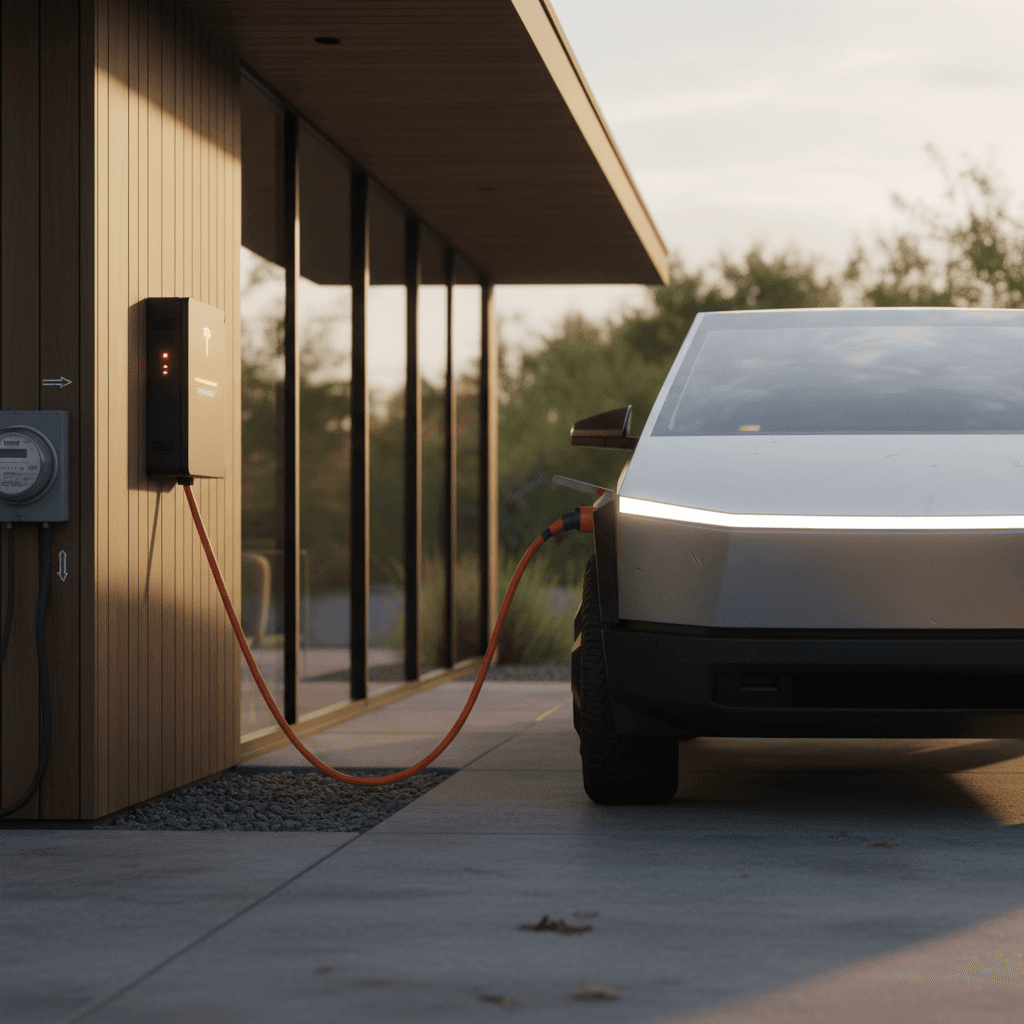
Tesla built the Cybertruck to be more than a pickup. With Powershare, it can double as a quiet home generator, running your lights, fridge, and Wi‑Fi when the grid goes dark. This guide walks you through Tesla Cybertruck Powershare setup, from hardware choices to app configuration, so you know exactly what’s involved before you sign an installation quote.
Quick definition
What Tesla Cybertruck Powershare Actually Does
Tesla splits Powershare into a few different experiences, all built around Cybertruck’s huge high‑voltage battery and the North American Charging Standard (NACS) port:
- Powershare Home Backup: Vehicle‑to‑home (V2H) backup that can deliver up to about 11.5 kW of continuous power to your home through a bidirectional wall connector and Powershare Gateway.
- Powershare Outlets: On‑board outlets in the bed, cabin, and 48V feeds in the roof/frunk for tools, appliances, and aftermarket accessories.
- Powershare Mobile: Using a compatible Mobile Connector and Tesla Outlet Adapter to power loads directly from the charge port, like an RV or smaller panel.
This article focuses mainly on Powershare Home Backup, because that’s where setup is most complex, and where mistakes can get expensive. We’ll also touch on outlets and the Mobile Connector so you understand the full picture.
Not a DIY project
Powershare Hardware You Need for Cybertruck
Before you think about app settings, you need the right physical setup. For most Cybertruck owners, Tesla’s Powershare Home Backup Bundle is the starting point.
Core Powershare Hardware for Cybertruck
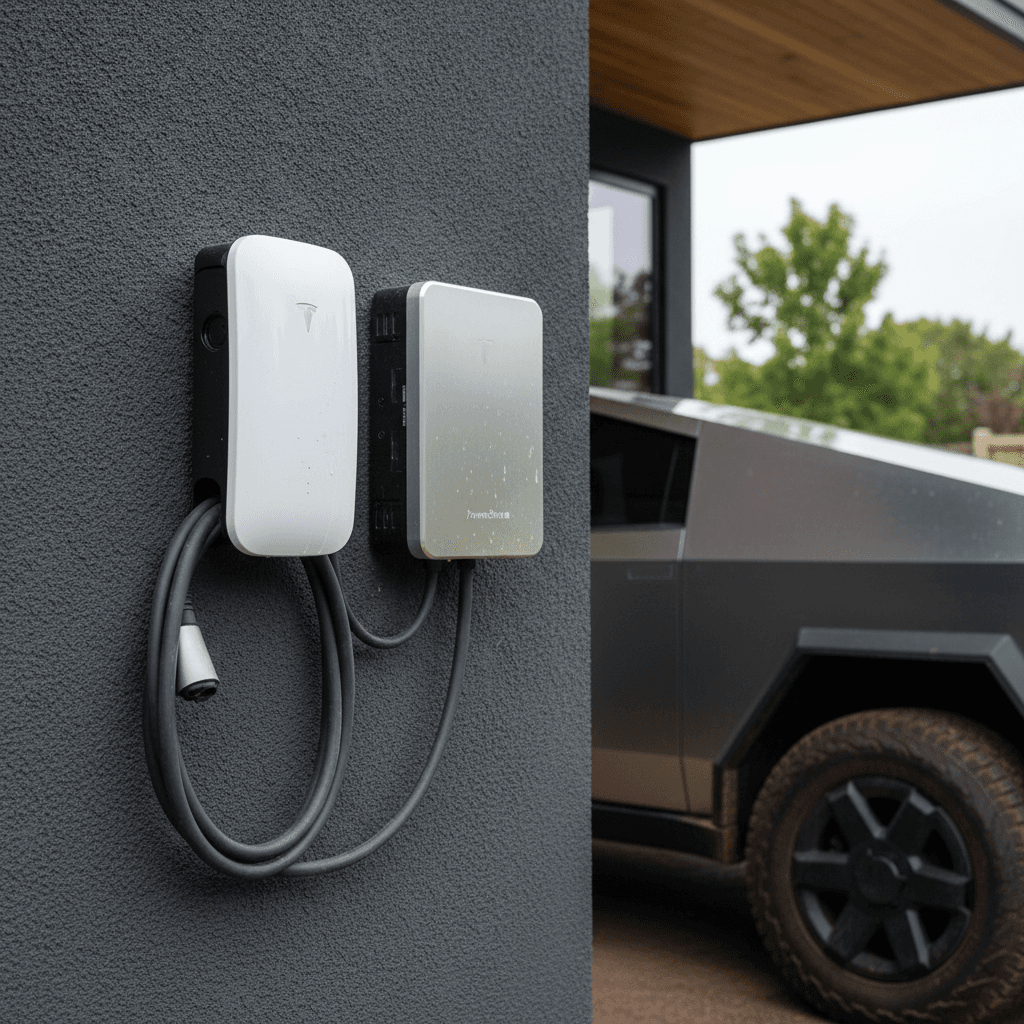
What each box on the wall actually does
Universal Wall Connector
This is your bidirectional EVSE. It charges your Cybertruck like a normal wall connector, but it can also send power back from the truck into your home when Powershare is active.
• Up to 48A / 11.5 kW
• NACS charge handle
• Low‑voltage comms cable back to the Gateway
Powershare Gateway
This metal box sits between the utility meter and the circuits you want to back up. It:
- Islands your home from the grid during an outage
- Measures power flowing in and out
- Talks to the Universal Wall Connector and Cybertruck
Optional Backup Switch / Powerwall
In some homes, Tesla or the installer uses a Backup Switch instead of moving loads into the Gateway. If you already have Powerwall, the configuration changes but you still need approved hardware and firmware for Powershare.
If you just want to run tools or a camper from your truck, you can skip all of that and use the bed outlets or a compatible Mobile Connector plus Tesla Outlet Adapter. Those are still Powershare, but they don’t give you whole‑home backup or an automatic transfer function.
Who can buy the Powershare bundle?
Planning Your Cybertruck Powershare Install
Getting Powershare right is 80% planning and 20% commissioning. Before anyone starts pulling wire, work through these decisions with your installer:
Pre‑Install Checklist for Cybertruck Powershare
1. Decide what you actually want to back up
Do you want <strong>whole‑home backup</strong> or just essential loads, fridge, lights, outlets, maybe HVAC? Backing up everything may require service upgrades and bigger price tags.
2. Confirm your electrical service rating
Powershare Gateway is typically used with homes that have a <strong>225A or smaller</strong> main panel rating. If you have 320A or complex multi‑panel setups, expect more design work and cost.
3. Choose install location & parking
You need to park Cybertruck within about <strong>20 feet</strong> of the Universal Wall Connector. Think through cable routing, driveway use, and whether the truck will block garage doors when plugged in for days.
4. Consider existing backup systems
If you already have a gas generator or Powerwall, decide whether Powershare is a supplement or replacement. Some utilities and inspectors will care how these systems interact.
5. Talk to your utility early
In many regions, the utility has to approve any system that can island your home. That approval can be the longest part of the timeline, get the application in sooner rather than later.
6. Budget realistically
Hardware is just part of the bill. Early adopters report <strong>installation quotes in the high four to low five figures</strong>, depending on panel location, trenching, and complexity.
Used‑EV angle
How the Professional Powershare Installation Typically Works
Powershare Home Backup is installed and commissioned by a Tesla‑certified electrician using Tesla’s Energy Library documentation and the Tesla One app. The exact wiring path depends on your house, but the flow looks broadly similar from job to job.
- Site survey & design – The installer documents your panels, main breaker size, grounding, and where a Powershare Gateway can safely land. They also confirm parking distance for the Universal Wall Connector.
- Permits and utility approval – They submit drawings to your local authority and, if required, the utility. Expect this step to take anywhere from days to weeks depending on where you live.
- Physical installation – The crew mounts the Powershare Gateway, runs conduit from your meter or main panel, installs the internal panelboard breakers, and moves the loads you’ve designated for backup. Then they mount and wire the Universal Wall Connector and run the low‑voltage comms cable.
- Initial power‑up – Once wired, they energize the Gateway and Wall Connector, verify correct line and neutral connections, and check that your main panel is still properly grounded and bonded.
- Commissioning in Tesla One – Using the Tesla One app, the installer pairs the Universal Wall Connector to the Powershare Gateway, sets regional grid codes, and runs connection tests.
- Customer registration & hand‑off – Finally, they register the system to your Tesla account. That’s what allows the Powershare system and your Cybertruck to appear inside your standard Tesla mobile app.
Good news for owners
How to Set Up Cybertruck Powershare in the Tesla App
Once your electrician has finished commissioning and registered the system, Cybertruck Powershare shows up in your Tesla app alongside your vehicle. Here’s how to get Powershare Home Backup working the first time.
- Update everything first – Make sure your Tesla app is on the latest version and your Cybertruck is updated to at least 2024.14 or newer. Powershare features sometimes arrive via over‑the‑air updates, so don’t skip this.
- Enable Powershare on the truck – In Cybertruck, tap Controls > Charging > Powershare Home Backup and turn it on. This tells the vehicle it’s allowed to discharge through the Wall Connector when conditions are met.
- Pair your phone to the system (if prompted) – In the Tesla app, you may need to go to Settings > Phone Pairing and scan the QR code on the Powershare Gateway’s deadfront. Follow the prompts until the system appears as “My Home.”
- Open the Home Backup view in the app – You should now see energy tiles showing Cybertruck, Home, and Grid. If your house is connected correctly, you’ll see real‑time power flows when the truck is plugged into the Universal Wall Connector.
- Set your Powershare discharge limit – In the vehicle card or energy view, adjust the discharge limit slider. This is the state‑of‑charge threshold where Cybertruck will stop powering the house so you’re not stranded with a dead truck. Many owners choose 20–40%.
- Run a Go Off‑Grid test – When available in your region, use the Go Off‑Grid button in the Tesla app to simulate an outage. Cybertruck should begin powering your home; you’ll see a green Powershare icon on the truck screen and a pulsing green light on the charge port and Wall Connector. When finished, tap Reconnect to Grid.
Solar owners: pay attention here
Using Cybertruck Powershare Home Backup Day to Day
Once everything is wired and configured, day‑to‑day use is surprisingly simple. The complexity is hidden under the sheet metal and behind Tesla’s software.
During normal grid operation
- Cybertruck plugs into the Universal Wall Connector and charges like a normal EV.
- You can schedule charging, limit amps, or set charge targets just like any other Tesla.
- The Powershare Gateway quietly monitors grid power and home loads but does not island the house.
During an outage
- When the grid goes down, the Gateway islands your home in a fraction of a second.
- If Cybertruck is plugged into the Universal Wall Connector and above the discharge limit, it starts feeding power to your home.
- You’ll see a Powershare icon on the truck screen and energy flows in the Tesla app. When the grid returns or the truck hits the discharge limit, Powershare stops.
Think like a generator owner
Powershare Through Outlets and Mobile Connector
Not everyone needs a full Gateway installation. Cybertruck’s on‑board outlets and Powershare‑enabled Mobile Connector let you tap the battery in simpler ways, useful for road trips, camping, and short outages.
Three Ways to Use Cybertruck Power Without a Gateway
Lower‑stakes Powershare that doesn’t touch your main panel
Bed & cabin outlets
Cybertruck includes 120V and 240V outlets in the bed and 120V outlets in the cabin. Enable them in Controls > Outlets & Mods and plug in tools, appliances, or EVSE for another vehicle.
Great for: job sites, tailgates, emergency fridge power.
48V accessory feeds
There are 48V power feeds in the roof and powered frunk for upfitters and DIY builds, each around 400W. These require custom accessories and careful wiring but unlock light bars, compressors, and more.
Mobile Connector + Tesla Outlet Adapter
If you own a Powershare‑capable Mobile Connector and matching Tesla Outlet Adapter, you can use Cybertruck to feed certain loads through its charge port without a full Gateway install. This is more like a big battery on a cord than a whole‑home backup.
Never backfeed your house
Safety, Limits, and Best Practices for Powershare
Powershare is clever, but the laws of physics, and your local electrical code, still apply. A few boundaries to keep in mind:
- Max continuous power: Cybertruck can provide up to about 11.5 kW of real power to your home. The Wall Connector circuit, breakers, and wiring must all be sized appropriately.
- Discharge limit is your safety net: Use the discharge limit slider to reserve enough energy to drive. Treat that number as sacred, especially in winter.
- Don’t overload outlets: Each bed, cabin, or 48V outlet has its own current and wattage limits. Cybertruck will shut them down if you exceed specs, but tripping them repeatedly isn’t kind to your hardware.
- Watch long, low‑power charging: Tesla notes that very low‑power AC charging (under ~2 kW) is inefficient for a battery this size. The same logic applies in reverse: tiny trickle loads over long periods may not be the best use of your truck’s energy.
- Plan for noise and access: A pickup humming in your driveway for 24–72 hours is quieter than a generator, but not silent. Think about neighbors, exhaust‑free airflow, and whether you need to access the bed while Powershare is running.
Code and inspection still matter
Troubleshooting Common Powershare Setup Issues
Early Cybertruck owners have hit a few predictable snags getting Powershare online. The good news: most of them are software or registration quirks, not wiring disasters.
Common Cybertruck Powershare Setup Problems
What it feels like from the driver’s seat, and what’s usually going on behind the drywall.
| Symptom | Likely Cause | What to Try First |
|---|---|---|
| System doesn’t appear in Tesla app | Installer didn’t complete customer registration or pairing; utility/permit not fully closed out | Ask the installer to verify commissioning is complete and the Powershare Gateway + Wall Connector are registered to your Tesla account. |
| Can’t add Powershare Gateway in app | Trying to add it as a generic “Gateway” instead of a specific Powershare system | In the Tesla app, go to hardware setup and look for a Powershare option instead of “Gateway 3.” If in doubt, let the installer handle pairing. |
| Truck is plugged in but not backing up home | Powershare not enabled on truck; discharge limit already reached; utility hasn’t approved operation yet | Confirm Powershare is enabled under Controls > Charging, check your discharge limit, and ask your installer if utility permission to operate is still pending. |
| Outlets shut off unexpectedly | You exceeded the rated power for that outlet or the truck is preserving its own battery | Reduce load, then re‑enable in Controls > Outlets & Mods or use the Reset function for 48V feeds. |
| Go Off‑Grid test fails | Solar configuration or wiring not matching Tesla’s design, or firmware out of date | Pause and call your installer. Don’t keep retrying off‑grid tests until they’ve checked wiring and firmware versions. |
Always have your installer looped in for anything that looks like a hardware fault or repeated error codes.
Document everything
Is Cybertruck Powershare Worth It for You?
From a critic’s seat, Powershare is one of those features that sounds like sci‑fi marketing until you live through your first multi‑day outage. Then it’s just quietly brilliant, assuming you were realistic about cost and complexity up front.
Great Powershare candidates
- You live in an area with frequent or long outages, but natural‑gas lines are limited or noisy generators are a non‑starter.
- You’re already committed to keeping a truck in the driveway most nights, and you don’t mind plugging in when storms roll through.
- You like the idea of one big battery doing double duty, mobility most days, backup power when the lights flicker.
When a generator (or nothing) may be better
- You’re rarely home, travel constantly, or park away from the house, no truck, no backup.
- Your home’s electrical service is complicated enough that Powershare quotes come back eye‑watering.
- You only lose power for an hour or two a couple times a year. A few UPS units and candles may be enough.
If you’re running the numbers because you’re considering a Cybertruck, new or used, remember to stack Powershare into your total cost picture. A well‑designed installation may let you skip a separate generator, which helps the math. At Recharged, our EV specialists can help you think through home‑energy tradeoffs while you shop for a used EV, even if it isn’t a Cybertruck.
Tesla Cybertruck Powershare Setup FAQ
Cybertruck Powershare turns your truck into infrastructure, rolling energy storage that can keep your home humming when the neighborhood goes dark. It isn’t cheap, and it isn’t plug‑and‑play, but when the design is thoughtful the experience borders on invisible: lights stay on, the fridge stays cold, and the truck quietly takes the hit. Whether you’re speccing a new Cybertruck or eyeing a used one, factor Powershare into the conversation. And if you’re comparing options, Recharged can help you weigh home‑backup tech alongside pricing, battery health, and everyday charging needs as you shop for your next EV.