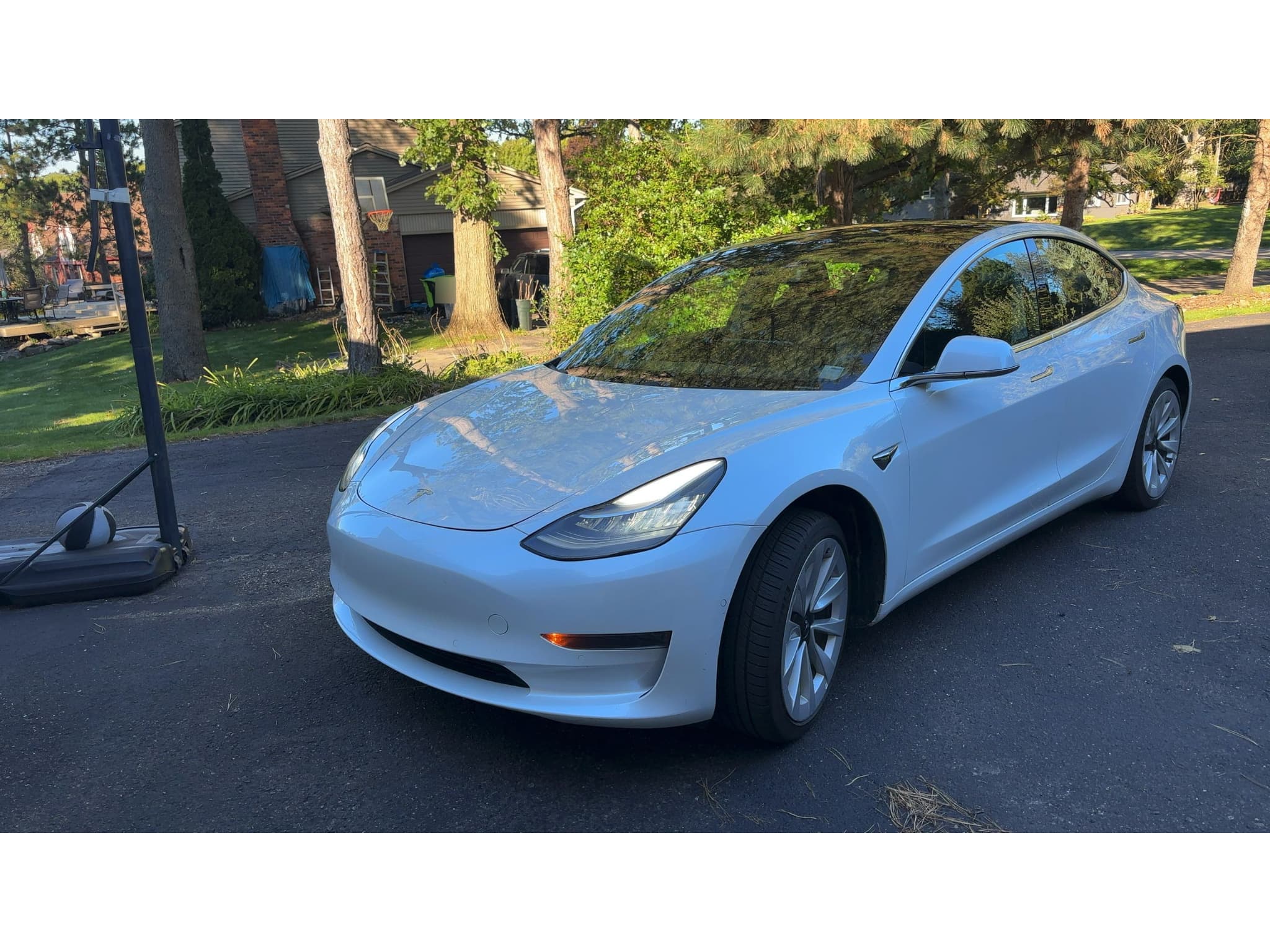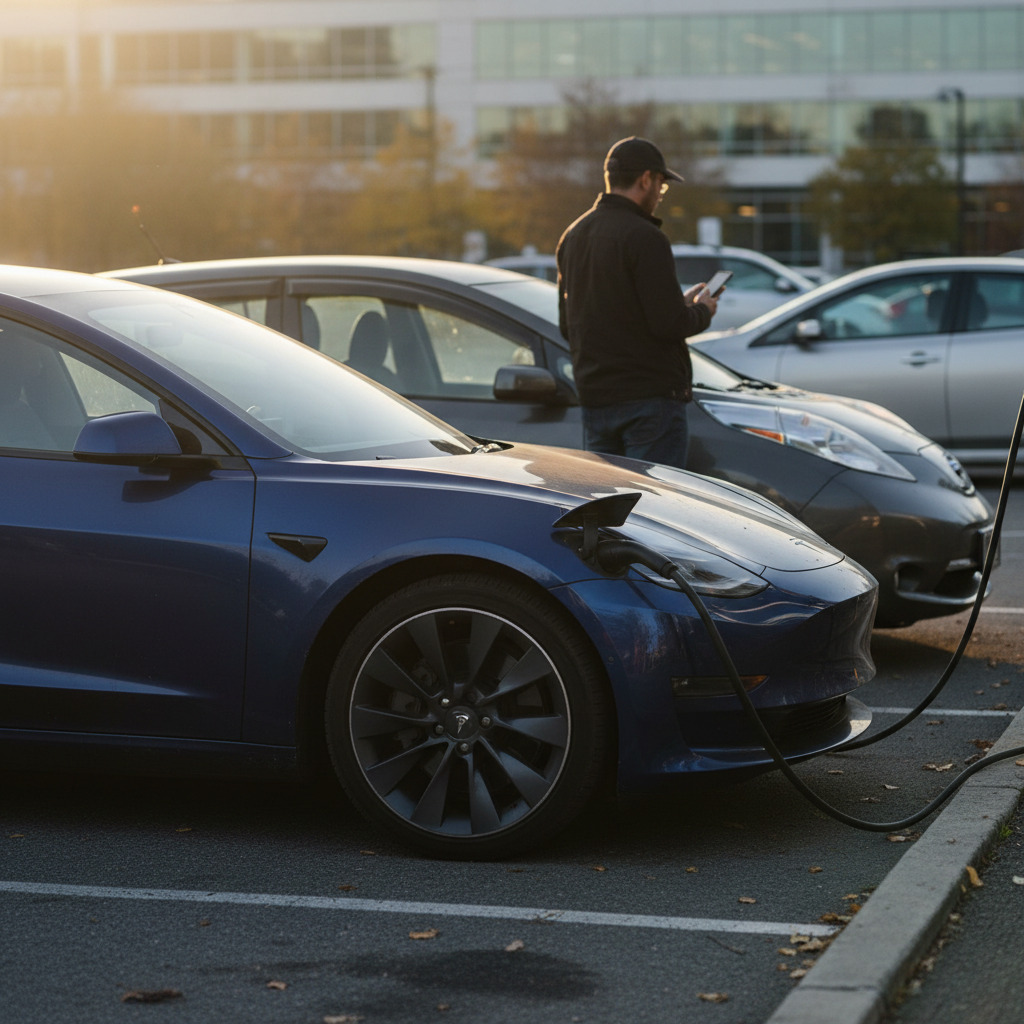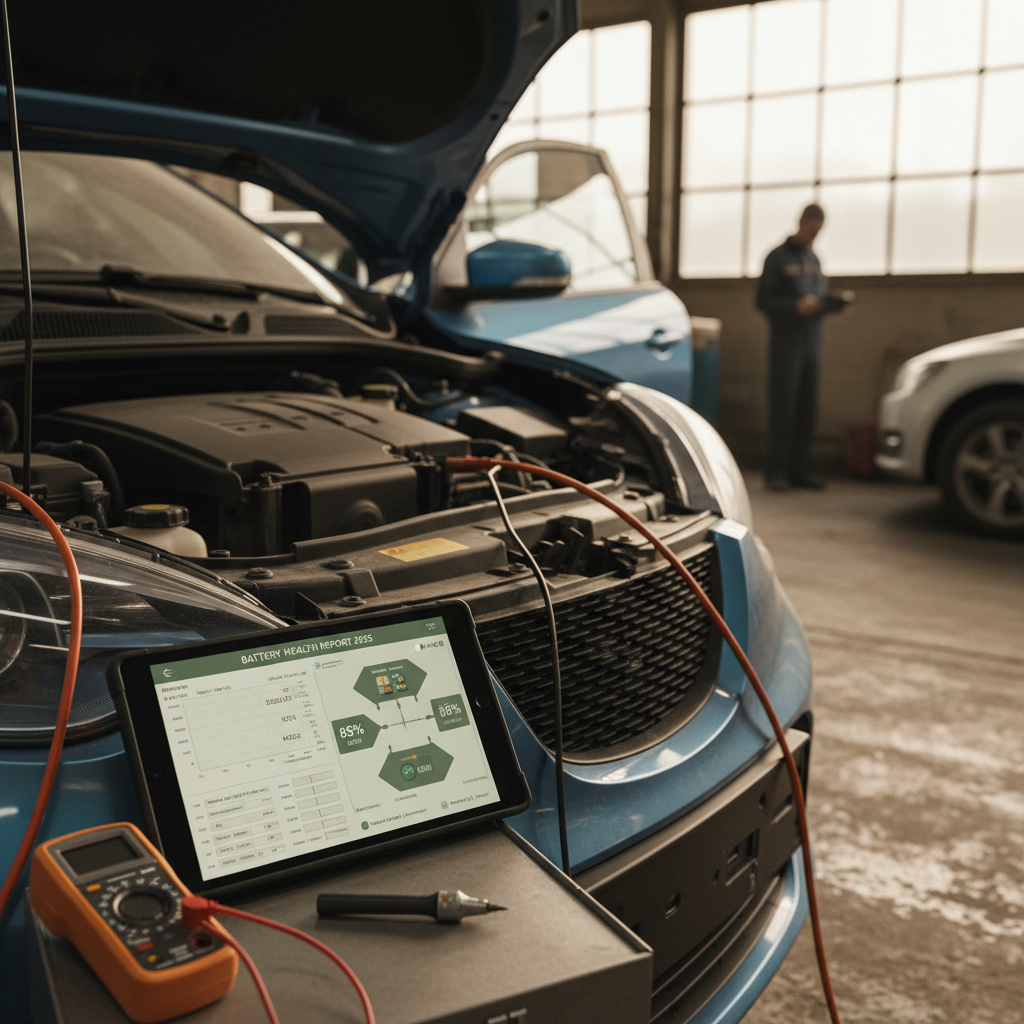
A Tesla is partly a vehicle and partly a connected software platform. Its over-the-air, or OTA, system lets the car receive software without a service-center visit, although the exact features available depend on the vehicle and installed software. The important distinction is that downloading happens in the background, while installation requires the car to remain parked and unavailable for driving.
What does a Tesla update actually change?
A Tesla update can change the touchscreen interface, navigation, charging controls, driver-assistance behavior, security systems, or entertainment features. Recharged team demonstrations have shown updates that added destination arrival choices, new driving profiles, navigation improvements, richer Dashcam playback information, location-based charge limits, and a phone-left-behind reminder. These are examples from particular releases, not a promise that every Tesla will receive every feature.
Availability varies by vehicle
How the update process works
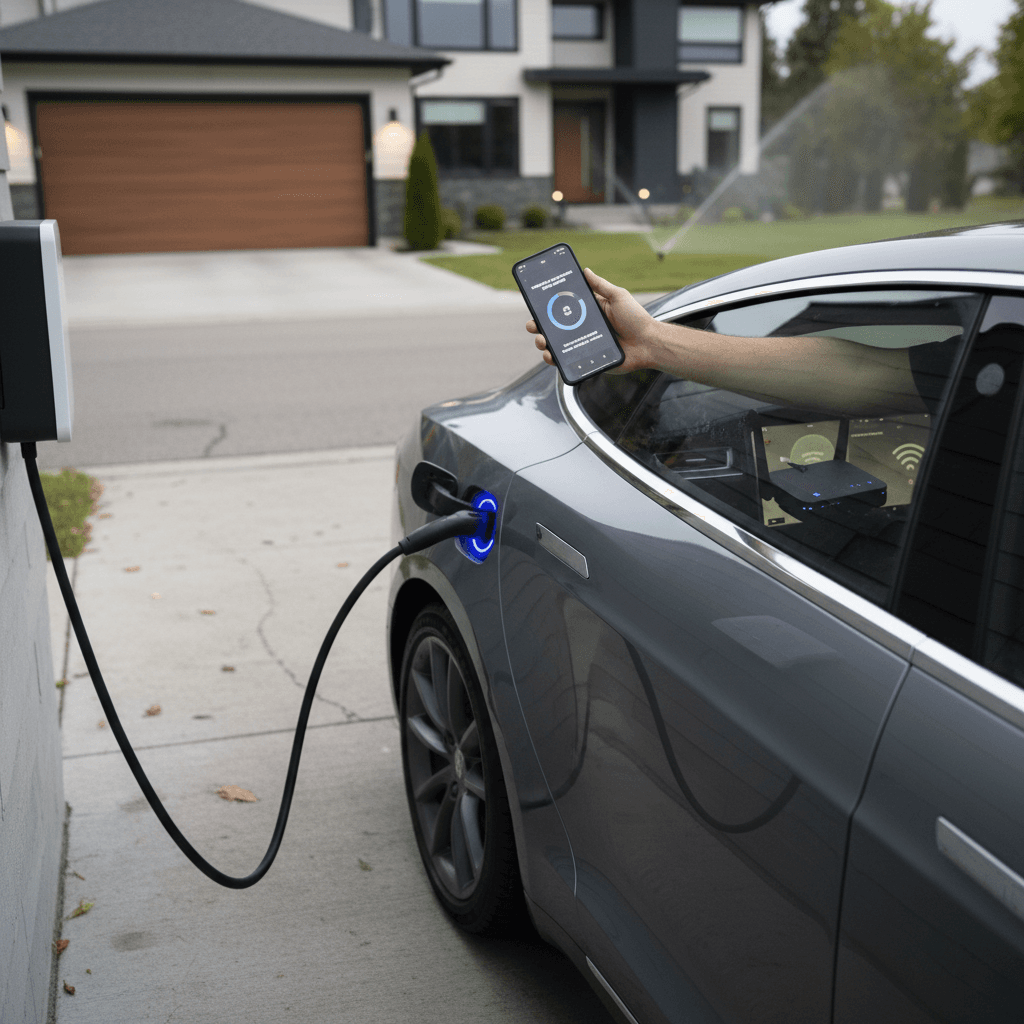
The process moves from notification to download and then to a parked installation. Most updates download over Wi-Fi, and you can generally continue using the car while the package downloads. Once installation begins, however, you can’t drive the vehicle or use some controls until it finishes, so schedule it for a time when you won’t need the car.
The update sequence at a glance
The vehicle and mobile app guide you through each stage.
| Stage | What happens | Can you drive? | What you do |
|---|---|---|---|
| Update available | Notification appears | Yes | Connect to Wi-Fi |
| Downloading | Software transfers | Usually yes | Keep a stable connection |
| Ready to install | Package is prepared | Yes, until started | Choose a start time |
| Installing | Vehicle applies update | No | Leave the car parked |
| Complete | New version is active | Yes | Read Release Notes |
Exact prompts and availability can vary by software version and vehicle.
Don’t start an update before a trip
Release Notes show what changed
The car’s Release Notes explain the changes included in its most recently installed software. From the touchscreen, open the Software screen and select Release Notes; the wording and menu position can change with the interface. Reading the notes is more useful than relying on a feature list posted for another Tesla because releases don’t always reach every vehicle at the same time or with identical functions.
Go to the Software screen and open Release Notes. That’s the quickest way to get a rundown of what changed in the update installed on your Tesla.
Recharged has also demonstrated releases containing Dog Mode monitoring activity, additional Dashcam playback details, navigation-favorite controls, Supercharger site maps, and charge limits saved by location. Some releases mix practical changes with games or other entertainment additions. Treat each set of notes as version-specific, especially when evaluating a feature mentioned in a seller’s listing.
Software status and battery health are separate
Recharged data
Used EV battery health
94%
avg remaining capacity
From Recharged battery inspections, not manufacturer estimates.
- Lowest
- 63%
- Median
- 95%
- Highest
- 100%
- Est. range
- 266 mi avg
- Cell balance pass
- 100%
- Quick charges
- 18 avg
- Slow charges
- 65 avg
Average cell imbalance: 7.3 mV
Based on vehicles Recharged tested
Recharged data
Used EV prices at Recharged
$30,997
median list price
Current list prices for matching inventory at Recharged.
- Lowest
- $12,996
- Average
- $34,803
- Highest
- $146,998
Average Recharged Score on these listings
4.8 / 5
Range
3.7 – 5.0
Based on available listings
Recharged data shows why you should assess installed software and battery condition separately when shopping for a used EV. Across 2,242 EVs inspected with Recharged Score battery diagnostics, tested remaining capacity averaged 93.9% of original capacity, with a median of 94.9%. Those are fleet-level figures rather than a prediction for an individual Tesla, but they illustrate why a software screen can’t replace a verified used-EV battery-health check.
Every EV is battery-tested with a Recharged Score. Nationwide delivery.
The takeaway is simple: current software may show that a car is connected and receiving support, but it doesn’t measure remaining battery capacity. A Tesla battery-health evaluation should examine the high-voltage battery directly instead of drawing conclusions from the software version, displayed range, or age alone.
What should you do before installing?
Before installing, make sure the Tesla can remain parked and unused until the vehicle confirms completion. Don’t assume you can interrupt an installation if your plans change. A few quick checks reduce the chance that an ordinary update becomes an inconvenience.
Tesla software-update checklist
Park somewhere practical
Choose a secure location where the car can remain stationary and temporarily unavailable.
Connect to reliable Wi-Fi
Use a stable network so the software package can download without repeated interruptions.
Allow enough time
Start only when you won’t need to drive, charge, or move the vehicle unexpectedly.
Check vehicle prompts
Resolve any conditions shown on the Software screen before beginning the installation.
Read Release Notes afterward
Confirm what changed and review any controls or behaviors you should understand before driving.
What used-Tesla buyers should verify
A used-Tesla buyer should verify the installed software, included paid features, account transfer readiness, charging operation, and battery health rather than treating “fully updated” as a complete condition report. Software shown in a listing may change before delivery, and a feature displayed in the interface may still depend on eligibility or an active purchase. Follow a broader used-Tesla inspection process before relying on the update screen alone.
- Open the Software screen and record the installed version.
- Read the vehicle’s Release Notes instead of assuming another Tesla has identical features.
- Confirm which paid or subscription-based functions transfer with the vehicle.
- Test Wi-Fi connectivity, the mobile app connection, navigation, cameras, and charging controls.
- Review verified battery diagnostics and the vehicle’s broader condition history.
Updates don’t erase physical wear
Instant offer, trade-in, or consignment. Pickup available.
Frequently asked questions
The bottom line
Tesla OTA updates make it possible to add and revise vehicle functions without a conventional service appointment, but the installation still requires planning. Use the Software screen to manage the process, leave the car parked while it installs, and read Release Notes afterward. When buying used, treat current software as one checkpoint alongside verified battery health, physical condition, charging performance, and confirmation of included features.