If you drive, or are shopping for, a Hyundai Kona Electric, its software is almost as important as its battery. The car’s software controls everything from navigation and charging behavior to safety systems and the Bluelink / MyHyundai app. Understanding the Hyundai Kona Electric software update history helps you know what features you should have today, what may be missing, and what to double‑check on a used Kona EV.
Quick takeaway
Why Kona Electric software updates matter
Software updates on the Hyundai Kona Electric fall into three broad buckets: infotainment and navigation, connected services (Bluelink / MyHyundai), and vehicle control & driver‑assist logic. Unlike a traditional gas car where most behavior is locked in at the factory, the Kona Electric can genuinely change over time as Hyundai refines features and fixes issues.
- Improve stability of Bluelink / MyHyundai app features like remote climate, lock/unlock, and charge status reporting.
- Update navigation maps, charging station POIs, and routing logic for EV‑specific needs.
- Tweak charging behavior and preconditioning logic, which can affect DC fast‑charging speeds and cold‑weather performance.
- Refine ADAS features such as lane keeping assist and adaptive cruise to feel smoother and more predictable.
- Add convenience features on newer generations, including wireless smartphone mirroring and small UX tweaks in the cluster and main screen.
A note on expectations
How Hyundai Kona Electric updates work: OTA vs USB
Over‑the‑air (OTA) updates
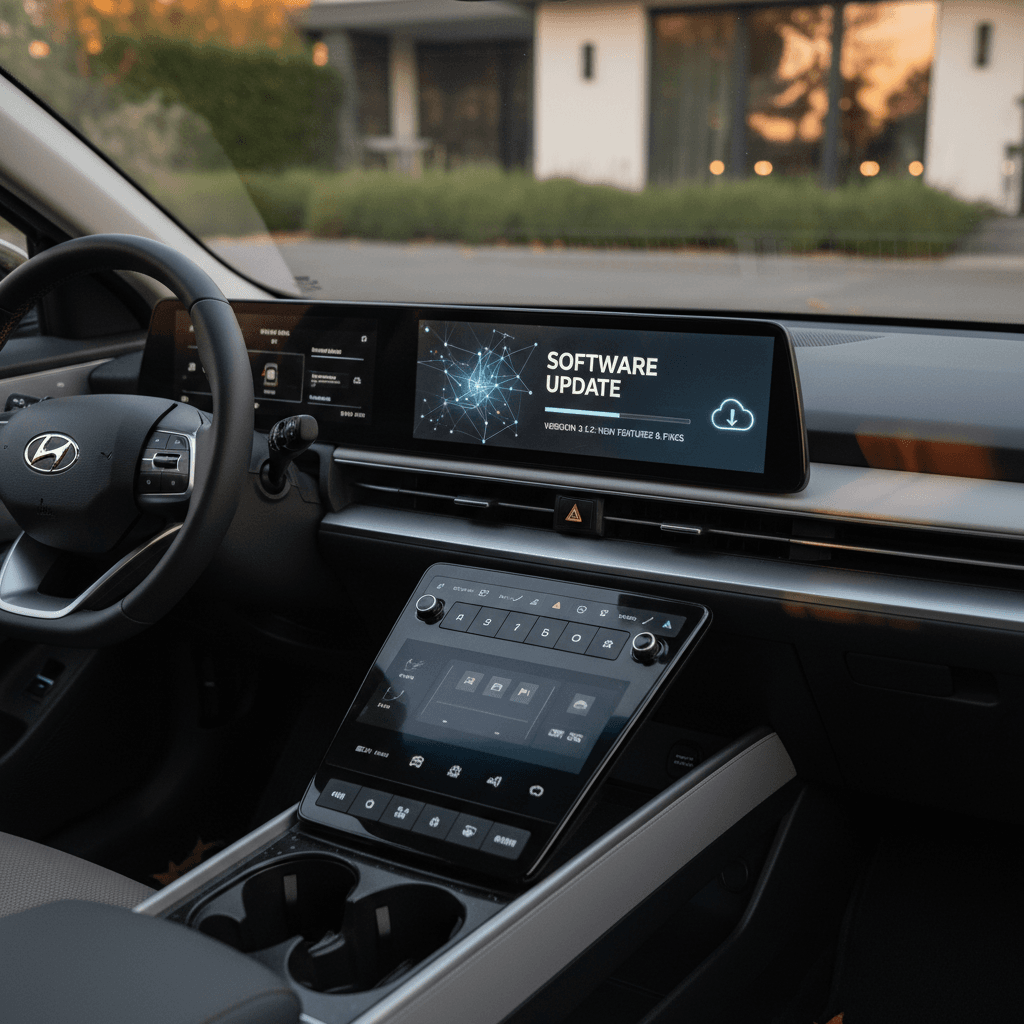
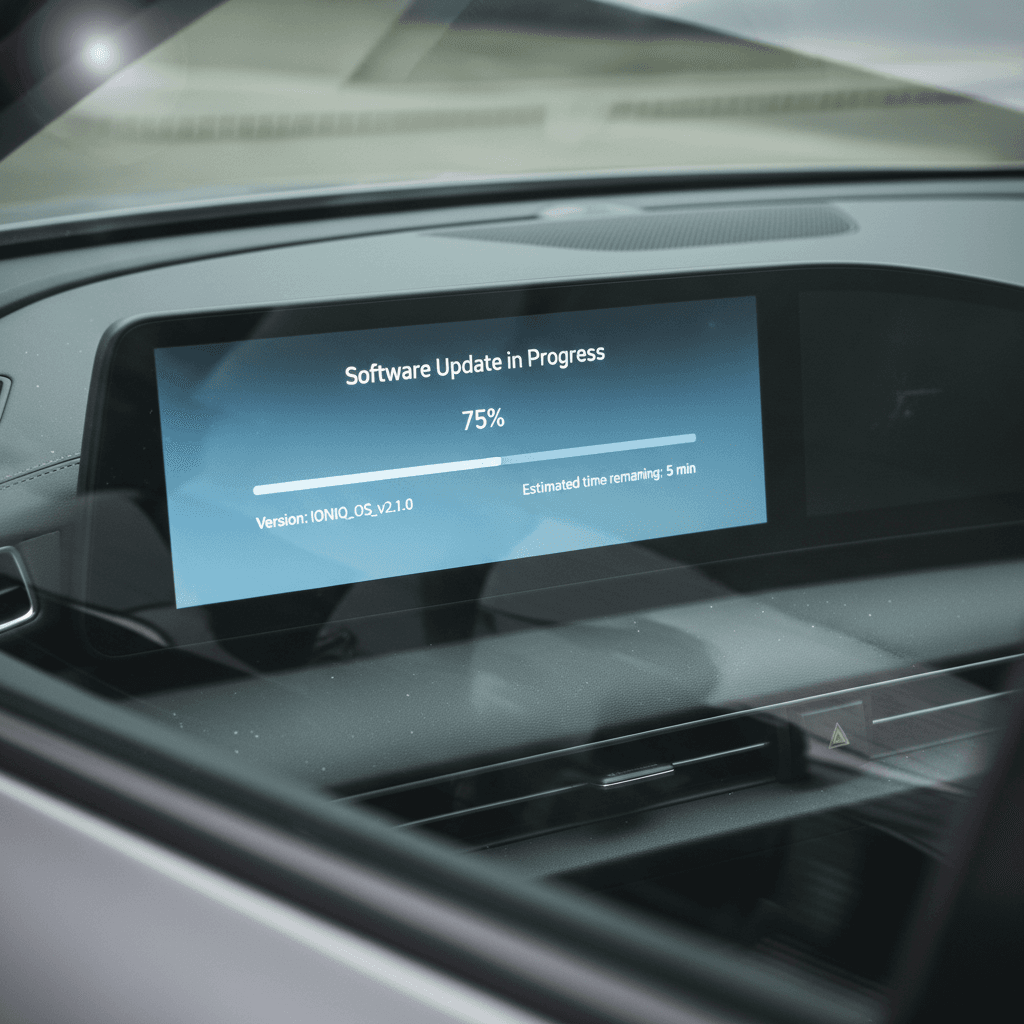
Newer Kona Electric models (especially the fully redesigned second‑generation starting with the 2024 model year) support OTA updates for maps and infotainment software. When an update is available, you’ll see a notification on the central screen, often after parking and shutting the car off. You confirm the install, and the car applies the update while parked.
- Delivered via Bluelink / MyHyundai connectivity.
- Typically covers navigation, multimedia, and system UI.
- Car can’t be driven or charged while an update is actively installing.
USB / manual updates
Earlier Kona Electric models, and even some newer trims, still rely partly on manual USB updates for the infotainment system. Owners download a large update file from Hyundai’s navigation or update portal, put it on a FAT32‑formatted USB stick (or SD card, depending on head unit), and start the update from the car’s settings menu.
- Useful if OTA is not available in your region or on your trim.
- Often used for larger navigation and head unit firmware updates.
- Requires following Hyundai’s specific instructions for the correct "Gen" of system.
Kona was Hyundai’s OTA pioneer
Kona Electric software update history by generation
Hyundai has built two main generations of the Kona Electric so far, each with different hardware and update behavior. Within each generation, there are multiple infotainment "generations" (Gen1, Gen2, Gen5W, etc.) that dictate how updates are installed and what they can change.
Kona Electric generations & software behavior
High‑level view of how updates evolved over time
1st‑gen Kona Electric (2019–2023)
- Introduced in North America for 2019 model year.
- Primarily manual USB/SD updates for nav & infotainment.
- Bluelink app support, but no full vehicle OTA at launch.
- Later units migrated to newer head units with more frequent map updates.
2nd‑gen Kona Electric (2024+)
- Fully redesigned body and interior.
- Introduced OTA updates for maps and system software.
- Upgraded driver‑assist suite and EV‑centric UX.
- More seamless Bluelink+ integration and charging‑focused features.
Infotainment "Gen" variants
- Older cars use Gen1/Gen2 head units that rely on USB/SD updates.
- Newer trims use Standard‑class Gen5W navigation, which supports richer graphics and OTA updates.
- Update files differ by generation, using the wrong one will fail.
Approximate Kona Electric software evolution by model year (North America focus)
This table summarizes typical software behavior by model year. Exact feature timing can vary by trim, region, and production date.
| Model year | Generation | Update delivery | Highlights |
|---|---|---|---|
| 2019–2020 | 1st gen | USB / SD, dealer | Early Kona Electric; navigation and firmware updates primarily via dealer or manual media; Bluelink basics only. |
| 2021–2022 | 1st gen (mid‑cycle refresh) | USB / SD, limited OTA for maps in some regions | Updated front fascia and interior tweaks; more frequent nav/infotainment updates; incremental ADAS tuning. |
| 2023 | 1st gen (late) | USB + improved connectivity | Some cars equipped with newer head units and more refined Bluelink integration; continued stability and compatibility updates. |
| 2024 | 2nd gen launch | OTA + USB manual | New platform with OTA for maps and system software on supported trims; some regions saw wireless Apple CarPlay / Android Auto added via update. |
| 2025–present* | 2nd gen | OTA primary, USB as backup | Ongoing feature refinements, charging and routing improvements, and periodic bug‑fix releases delivered mostly OTA. *As of early 2026. |
Always cross‑check with your owner’s manual and Hyundai’s update portal for your specific VIN.
Don’t assume all Konas update the same way
Major Kona Electric software updates owners actually notice
Hyundai doesn’t publish an easy, consumer‑facing changelog for every Kona Electric software version. But from owner reports, dealer bulletins, and Hyundai’s own marketing, several themes emerge across the update history.
High‑impact update themes
What changed that you can actually feel day‑to‑day
Infotainment, CarPlay & Android Auto
- Stability fixes for wired Apple CarPlay and Android Auto on early first‑gen cars.
- Interface refinement and faster boot on newer Gen5W systems.
- On some 2024+ Kona EVs, owners report updates enabling or improving wireless CarPlay and Android Auto where licensed.
EV‑aware navigation & routing
- Updated maps and charging station POIs, including DC fast‑charge locations.
- Better routing estimates for arrival state‑of‑charge on long trips.
- Improved logic around suggesting charging stops and integrating with Bluelink trip data.
Driver‑assist tuning
- Smoother lane‑keeping assist behavior and fewer false beeps in some update waves.
- Refinements to adaptive cruise behavior, gap settings, and cut‑in handling.
- Bug fixes for occasional warning light or error messages triggered by software glitches rather than hardware faults.
Charging & battery management
- Updates to DC fast‑charging behavior, especially in cold temperatures.
- Better coordination between preconditioning, charge limits, and scheduled charging.
- Edge‑case bug fixes affecting displayed range or charge status in the app vs on‑screen.
Common Kona Electric software update issues
Most Kona Electric software updates install without drama, but enough owners have reported issues that it’s worth going in with eyes open, especially if you’re relying on the Bluelink / MyHyundai app for daily use.
- Bluelink data not updating after an OTA: Owners of 2021–2024 Kona Electrics describe cases where an OTA infotainment update completes, but the app no longer shows charge level, range, or allows remote commands, even though location still works.
- Update stuck or never installing: Some 2024+ Kona owners report the system repeatedly downloading an update but refusing to install, often blaming conditions like low or cold battery, short trips, or user deferrals.
- Head‑unit reboot loops or freezes after a failed USB update if the wrong file or generation was used, or if the USB stick wasn’t prepared exactly per Hyundai’s directions.
- User settings reset in smaller ways, like custom drive‑mode buttons or radio presets, after certain software updates, particularly performance‑oriented trims sharing platform hardware with the EV.
Temporary app glitches are common after big updates
You generally can’t roll back
How to check your Kona Electric’s software version
Because there are multiple infotainment generations and update channels, your first step is simply figuring out what you have today. This is also crucial when you’re evaluating a used Kona Electric.
Find your current software version
1. Identify your model year and trim
From your registration or door‑jamb sticker, confirm the model year (e.g., 2021, 2023, 2024) and trim (SEL, Limited, etc.). This narrows down which infotainment system you’re likely dealing with.
2. Open the Setup / Settings menu
On the center screen, press the <strong>Setup</strong> or <strong>Settings</strong> button, then look for a tab like <strong>General</strong>, <strong>System</strong>, or <strong>Device Info</strong>. Hyundai’s labeling varies slightly by head unit generation.
3. Look for Software Information or Version
You should see entries for navigation, firmware, or software version, sometimes with long codes that include the region (e.g., USA), head‑unit type (like Gen5W), and a date string. Take a photo so you have it handy.
4. Check for an Update menu
Many Kona Electrics have a <strong>Software Update</strong> or <strong>Update</strong> tab within the same settings area. This may show whether an OTA package has been downloaded or if only USB / SD updates are supported on your car.
5. Cross‑reference with Hyundai’s update portal
Hyundai’s navigation / map update website lets you enter your vehicle details, download manuals, and check for the latest supported version for your head‑unit generation. Match your in‑car version against what the portal lists as current.
6. For used cars, ask for documentation
If you’re buying a used Kona Electric from a dealer or private seller, ask whether any major software updates were recently performed and if there are service records. This is especially important if the seller mentions OTA notifications or Bluelink issues.
Best practices before and after a Kona Electric update
You don’t control when Hyundai releases updates, but you can control how you approach them. A few small habits will reduce headaches and help you get the full benefit of each release.
- Read the on‑screen summary before you tap “Update now.” Hyundai’s descriptions are short, but they’ll usually tell you if it’s maps only or a larger system update.
- Plan for downtime: even minor updates can take 15–30 minutes, and your Kona can’t be driven or charged mid‑install. Start the process when you don’t need the car immediately.
- Keep your 12V and traction battery in good shape: if the car warns about low state‑of‑charge or cold battery preventing an update, fix that before trying again.
- For USB updates, follow Hyundai’s instructions exactly, correct head‑unit generation, formatting the drive, and copying the right folder structure.
- Document your settings (radio presets, custom drive‑mode buttons, navigation favorites) in case a major update resets any of them.
- After a big update, test critical features: remote start/AC, lock/unlock, charge status in the MyHyundai app, DC fast‑charging at a familiar station, and your usual ADAS settings. Catching problems early makes dealer conversations easier.
When to say “later”
Used Kona Electric buying checklist: software & connectivity
From a used‑EV shopper’s perspective, software health is part of overall vehicle condition. At Recharged, we look at software and connectivity alongside battery diagnostics when we compile a Recharged Score Report for each Kona Electric we sell. Here’s how you can apply the same mindset when shopping anywhere.
Software checks for a used Kona Electric
Confirm update capability
During a test drive, open the infotainment settings and look for the software version and update menu. If the car hasn’t been updated in years, or shows obvious errors, factor that into your decision.
Test the MyHyundai / Bluelink app
If possible, have the seller demonstrate that remote lock/unlock, climate, and charge‑status reporting work. Glitches immediately after a recent update can be normal, but persistent failures may need dealer intervention.
Verify charging and range displays
Plug into a Level 2 charger if you can and make sure charge status updates on‑screen and, ideally, in the app. Watch for obviously incorrect range estimates or errors that could hint at software or BMS issues.
Check driver‑assist behavior
Turn on lane‑keeping assist and adaptive cruise on a safe road. Sudden jerky corrections, constant warnings, or frequent system errors might indicate outdated or buggy software, or, in rare cases, sensor issues.
Ask about recent updates or recalls
Request service records from the seller or dealer. If major software campaigns were skipped, you may need to schedule them after purchase. Conversely, a car that’s fully up to date is a positive signal.
Lean on third‑party diagnostics
A marketplace like <strong>Recharged</strong> pairs battery health testing with checks of software, connectivity, and charging behavior. That gives you a clearer picture than odometer alone when comparing used Kona Electrics.
How Recharged helps with Kona Electric software
FAQ: Hyundai Kona Electric software updates
Frequently asked questions about Kona Electric software
The bottom line for Kona Electric owners and shoppers
Hyundai’s approach to the Kona Electric has evolved from largely dealer‑ and USB‑based updates on the first generation to a more modern, OTA‑capable setup on the latest models. Even if the update notes are vague, those software changes shape how your Kona charges, navigates, talks to the MyHyundai app, and supports safety features. Whether you already own a Kona Electric or you’re browsing used listings, taking a few minutes to understand its software update history is well worth it.
If you want help decoding all of this on a specific car, a marketplace like Recharged can make life easier. Every EV we sell comes with a Recharged Score Report that pairs verified battery health with a close look at software, charging behavior, and fair‑market pricing, plus EV‑specialist support, financing options, and nationwide delivery. That way you’re not just buying a Kona Electric with a good spec sheet, you’re buying one that’s ready for many more software updates and years of trouble‑free driving.