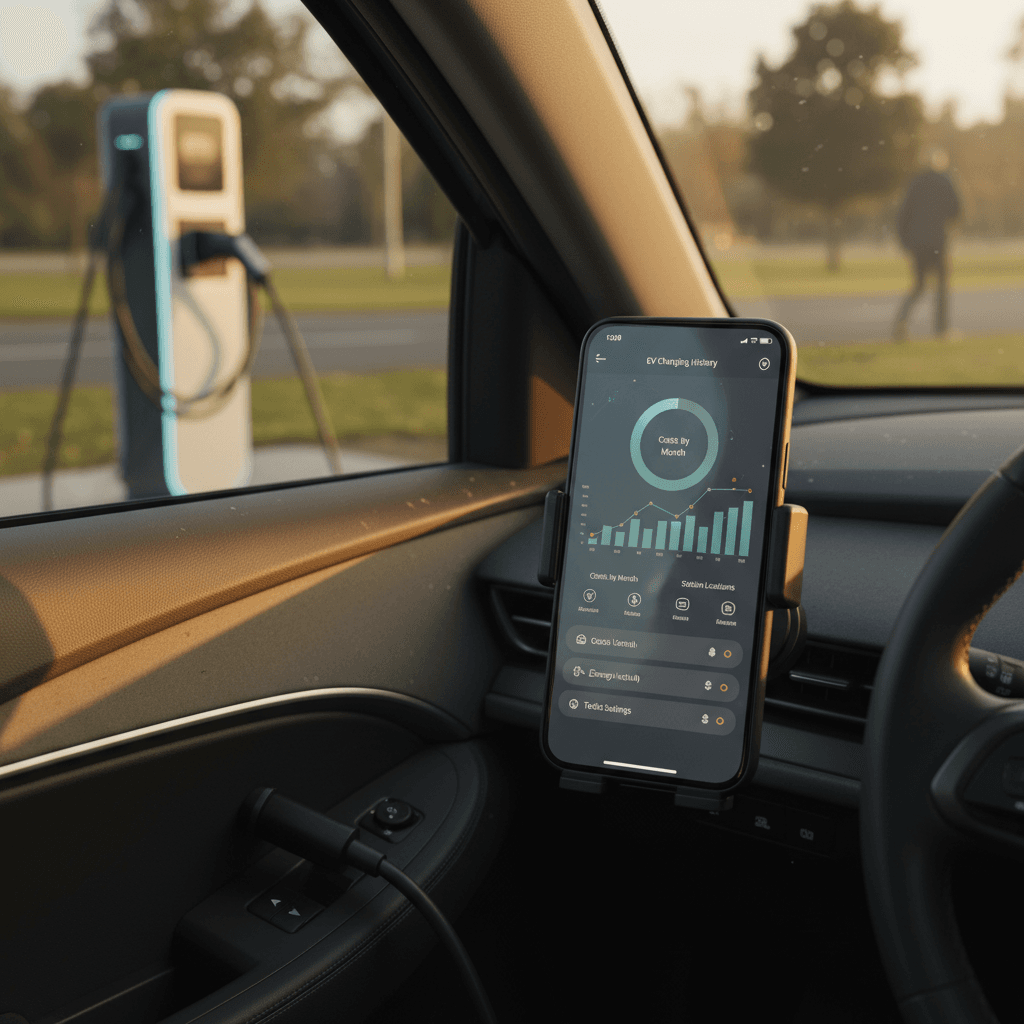
If you’re wondering how to check EV charging history, you’re already ahead of most drivers. Charging data tells you what you’re really spending, how you use your battery, and, if you’re shopping used, how a car has been treated. The catch: that history is scattered across your car’s app, public charging apps, and sometimes a smart home charger.
Good to know
Why your EV charging history matters
- Costs: See what you really pay at home vs. public DC fast charging and whether off-peak rates would save you money.
- Battery health: Frequent fast charging to 100% is harder on a pack than slower Level 2 with reasonable charge limits.
- Trip planning: Understand how much energy road trips actually use so the next one is less stressful.
- Resale value: A clean charging record helps tell a trustworthy story when you sell or trade your EV. At Recharged, we blend this with battery diagnostics in every Recharged Score report.
Quick starting point
Where EV charging history actually lives
Three main places to find EV charging history
Most drivers will use a mix of all three
1. Vehicle & OEM apps
Your car’s own app (Tesla app, FordPass, MyHyundai, Kia Connect, MyChevrolet, etc.) often shows basic charging history, energy use, or at least the last few sessions.
2. Public charging apps
Networks like ChargePoint, Electrify America, EVgo and others keep detailed history when you start sessions through their apps or RFID cards.
3. Home charger apps
Smart Level 2 units from brands like Wallbox, ChargePoint Home, Emporia, or Tesla Wall Connector can log every home session with kWh and cost estimates.
Think of charging history as three overlapping circles: car, charger, and network. The closer you get to using the same app every time you plug in, the easier it is to see the full picture.
How to check Tesla charging history
Tesla gives you more charging data than most automakers, but it’s split between Charge Stats (overall history) and Supercharger billing (individual DC fast-charge sessions).
See overall Tesla charging history in Charge Stats
1. Open the Tesla app
Make sure you’re signed in as the primary owner. Tap your vehicle if you have more than one Tesla on the account.
2. Tap “Charge Stats”
On most current versions you’ll see a tile labeled <strong>Charge Stats</strong> on the main vehicle screen. Tap it to open detailed charts.
3. Choose timeframe
Use the selector at the top to switch between <strong>Monthly</strong> and <strong>Yearly</strong> views. Tap and hold a specific day in the chart to see that day’s total energy and estimated cost.
4. Customize electricity rates
In the Charge Stats settings, set your home electricity rate and time-of-use schedule if your utility uses peak/off-peak pricing. This makes the spending estimates far more accurate.
5. Turn on data sharing if needed
If Charge Stats is missing completely, go to your car’s touchscreen, open <strong>Charging</strong> → look for data or app sharing toggles, and enable sharing so the app can collect charging data.
How far back does Tesla history go?
- In the Tesla app, tap your profile icon → Account → Charging → History to see itemized Supercharger sessions and invoices.
- Tap each session for energy delivered, cost, time, and station details, which is handy when you’re tracking road-trip expenses.
- If you use “Charge Your Other EV” with a non-Tesla, you’ll see those sessions in the same history screen when you’re logged into the Tesla app with your Tesla account.
Watch out for missing sessions
Checking charging history in other EV brand apps
Non-Tesla brands are catching up on charging analytics, but each one hides history in slightly different menus. Here’s how to get oriented in the major apps available in the U.S.
Where to look for charging history in common OEM apps
Menu names change with app updates, but these are the usual suspects.
| Brand / App | Typical menu path | What you’ll usually see | Tips if you don’t see it |
|---|---|---|---|
| Ford (FordPass / FordPass Pro) | Vehicle → EV / Charging → History or Energy | Recent charge events, time plugged in, charge level at start/end on some models | Make sure you added the EV (not just a gas Ford) and that you have an active connected-services subscription. |
| Hyundai (MyHyundai / Bluelink) | EV → Energy / Eco Driving / Charge Management | Energy use, eco driving history, scheduled charging; limited per-session detail in many models | Hyundai often shows more driving efficiency than per-session charging. Use public network apps to fill the gaps. |
| Kia (Kia Connect / Kia Charge in some regions) | EV → EV Drive History or Charging / Charge History | Some models show charge efficiency or lists of sessions by date; newer apps mention “charge history” explicitly. | If you only see battery %, your region or trim may not support detailed history yet. |
| GM (myChevrolet, myGMC, myBuick, myCadillac) | Energy / Charging → History or Usage | Charging and energy use summaries, especially on Ultium-platform vehicles. | Check that you’re signed into the same account you used when activating connected services at delivery. |
| Volkswagen / Audi (VW Car-Net, myAudi) | e‑Mobility / Charging & Range → Charging | Charging status and sometimes recent session details or cost estimates. | Some ID.4 owners find public network apps more reliable for actual cost and kWh numbers. |
If your app just shows state of charge and no history, you may need to rely more on network and home-charger data.
If all else fails, search inside the app
Seeing your public charging history (EA, ChargePoint, EVgo and more)
If you’ve ever plugged into a public fast charger and wondered, “Where did that $32 go?”, this is where the answers live. Network apps are usually the most detailed source for per-session data.
How to check charging history in major U.S. networks
Menu names change, but the pattern is the same: menu → history/activity → tap a session for details.
ChargePoint
• Open the ChargePoint app
• Tap the main menu ☰
• Choose Charging Activity
• Filter by cost, energy, or distance
• Use Trends or Monthly Statements to download statements
Electrify America
• Open the Electrify America app
• Tap Account or your profile icon
• Select Charging History or Sessions
• Tap a session to see kWh, time, and total cost; many drivers also receive email receipts.
EVgo and others
• In the EVgo app, go to Account → Charging History (name may vary slightly).
• Smaller networks usually tuck history under Activity, History, or Trips in the main menu.
Aggregator apps (PlugShare, A Better Routeplanner, etc.)
Apps like PlugShare can show where you’ve checked in to charge and sometimes basic session details, but they’re best seen as a log of locations, not your single source of truth for cost.
Session history only exists if the app was involved
How to check history on a home charger or wallbox
Smart Level 2 chargers are quietly some of the best historians in your garage. If yours connects to Wi‑Fi or Bluetooth and has an app, odds are it logs every session.
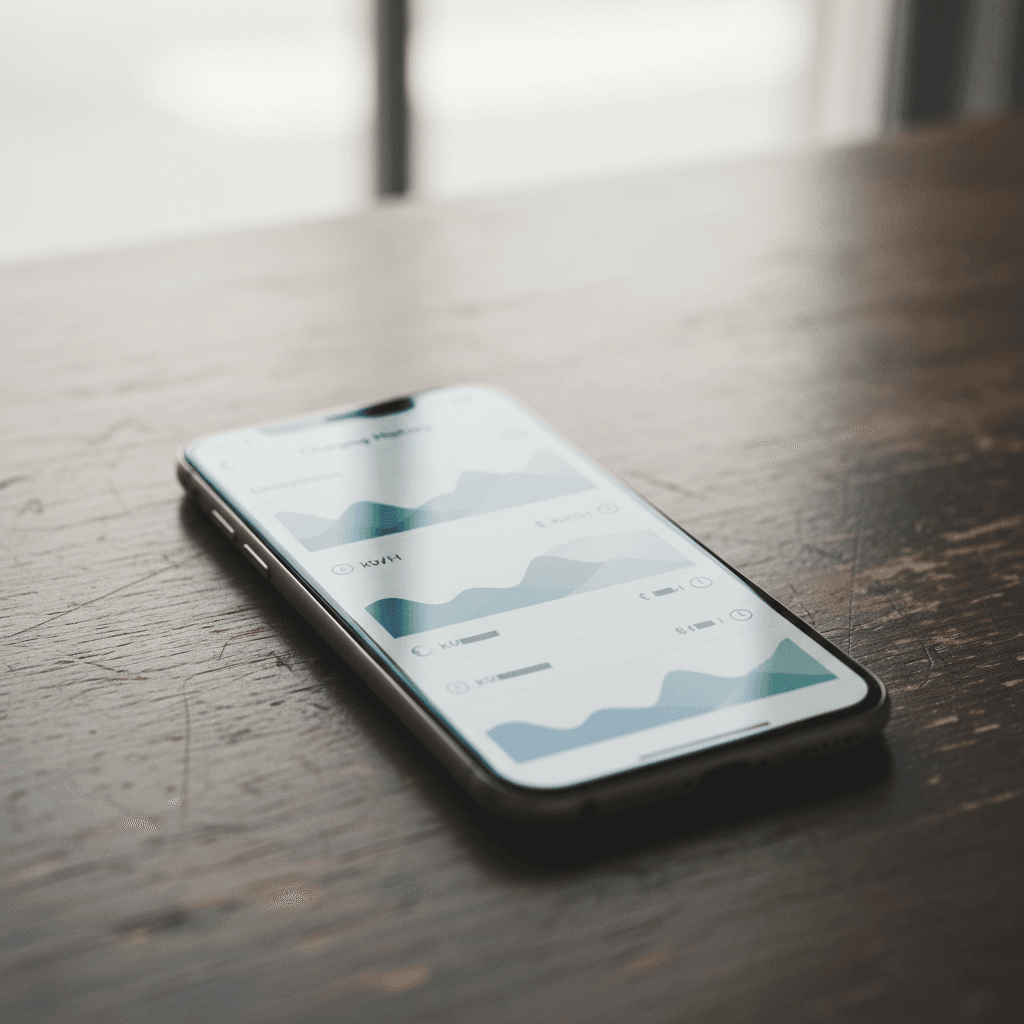
Typical steps to see home charging history
1. Open your charger’s app
Use the brand-specific app (Wallbox, ChargePoint Home, Emporia, JuiceBox, etc.) that you set up when you installed the unit.
2. Find “History” or “Sessions”
Look for a tab or menu item labeled <strong>Usage</strong>, <strong>Energy</strong>, <strong>History</strong>, or <strong>Sessions</strong>. Many apps default to a daily or monthly chart view.
3. Tap into individual sessions
Most smart chargers let you tap a bar or list entry to see kWh delivered, start/end times, and sometimes your estimated cost for that session.
4. Set your electric rate
In the app settings, add your utility rate (or upload your tariff if supported). Without this, cost estimates will be generic or missing.
5. Export if available
Some apps allow CSV or PDF exports. These are invaluable if you’re tracking work reimbursements or filing taxes for business miles.
Hardwired wallboxes without “smart” features
Manual tracking and downloads for power users
If you like your numbers neat, or you write off charging as a business expense, you can go a step further and build your own log from the sources above.
Simple manual log
For most drivers, a basic spreadsheet works fine:
- Date and time
- Location (home, work, network name)
- Energy added (kWh)
- Cost
- State of charge before/after (if you care about battery health)
Fill this in once a week from your network and home-charger apps.
Automatic data nerd options
Third‑party services and OBD‑based tools can pull detailed logs from certain brands, especially Tesla. These can show trends in charging speed, degradation, and more, but always review their privacy policies carefully before granting access to your vehicle data.
Be thoughtful about data sharing
How to actually use your charging history data
Practical ways to put charging history to work
- Dial in your home charging schedule. Compare a month of home charging kWh and cost against your utility rates. If your utility offers off‑peak pricing, schedule charging accordingly.
- Spot lifestyle changes. A sudden jump in monthly kWh might reflect a new commute, more road trips, or an ineffective preconditioning habit in winter.
- Protect your battery. If your history shows frequent DC fast charging to 100%, consider adjusting habits, charge just enough to reach the next stop and only go to 100% when you need the range.
- Prepare for resale or trade‑in. A clean, mostly home‑charging history helps reassure the next owner. At Recharged, it complements our battery health diagnostics in the Recharged Score Report every vehicle gets.
Charging history when you’re buying a used EV
Here’s the hard truth: sellers rarely hand over their full charging history, and many owners never turned those features on in the first place. But you can still infer a lot.
Reading between the lines without a full log
What you can learn from partial charging history and a good inspection
Trip vs. commuter life
Lots of DC fast charging sessions clustered along interstates point to frequent road trips. That isn’t automatically bad, but it’s helpful context when you check battery health.
Mostly home charging
A pattern of overnight Level 2 sessions with moderate charge limits is about as gentle a life as an EV can have.
Battery tests fill the gaps
Even if you never see the car’s past history, a strong diagnostic, like the Recharged Score we run on every vehicle we sell, can show you the current state of the pack in plain language.
How Recharged handles “invisible history”
Ready to find your next EV?
Browse VehiclesTroubleshooting: When your charging history seems to be missing
If you’re sure you’ve been charging, but every screen shows a big fat zero, run through this short checklist.
Quick checks for missing EV charging history
1. Update your apps and vehicle software
Outdated vehicle firmware or mobile apps can hide or break history features. Update your EV’s software and your phone apps, then check again after a day or two.
2. Verify account ownership and region
Some OEM features, like Tesla’s Charge Stats, only show up for the primary owner in supported regions. Secondary drivers or fleet accounts may see less detail.
3. Confirm data-sharing or privacy settings
In your vehicle’s settings, look for privacy or data‑sharing toggles related to charging or app services. If those are off, the app can’t build a history.
4. Check whether the app was involved in the session
Network history only exists when the session is started with your account, usually by tapping “Start” in the app or using your RFID card. Anonymous credit‑card taps often won’t appear.
5. Look at your home charger separately
Your home wallbox may keep its own log, completely independent of the vehicle or network. Open its app and check for usage or session history there.
6. Give it time
Some systems update only once or twice a day. If you just finished a new type of session, wait 24 hours before assuming it’s forever lost.
When history is truly gone
Frequently asked questions about EV charging history
Common questions about checking EV charging history
Wrap-up: Build a clear picture of your EV’s life on the plug
Checking your EV charging history is less about hunting for a single magic screen and more about knowing where each piece of the puzzle lives. Your car’s app explains the big picture, public charging networks fill in road‑trip details, and a smart home charger quietly logs the daily grind.
Once you know how to pull those threads together, you can control costs, treat your battery kindly, and tell a clear story when it’s time to sell. If you’re eyeing a used EV and want that story without the detective work, Recharged bundles battery diagnostics, pricing analysis, and expert guidance into every purchase, so the only surprise is how quickly you get comfortable driving electric.