If you own, or are eyeing, a Cadillac Lyriq, you’ve probably heard about infotainment issues: frozen screens, layouts that reset themselves, or Apple CarPlay audio that cuts out for no good reason. The Lyriq is a gorgeous, quiet EV with a knockout curved display, but its software can feel like a beta test in a luxury suit.
What this guide covers
Why Cadillac Lyriq infotainment issues keep coming up
The Lyriq is one of GM’s first mass-market EVs on the Ultium platform, paired with an Android-based infotainment system that runs Google apps, navigation, and vehicle settings. That’s a lot of new hardware and software all landing at once. When you read owner forums, you see a pattern: the electric powertrain is usually rock solid, while the glitches live almost entirely in the screens.
Three big reasons Lyriq infotainment feels flaky
It’s not just "GM being GM", there’s real complexity behind the bugs.
New software stack
Lots of modules talking
OTAs plus dealer flashes
On the plus side, many Lyriq owners report that once their vehicles receive a handful of updates, the worst glitches either disappear or become rare annoyances instead of daily frustrations. But if you’re unlucky enough to buy one on an early or buggy software build, you’ll notice it quickly.
Most common Cadillac Lyriq infotainment issues
- Screen freezing or pixelating: The main curved display can lock up or turn into a pixelated mess. In some cases the right side resets, while the left cluster stays frozen until you power-cycle the car.
- Black screen at startup: You press Start and…nothing. The car drives, but the display stays black until a restart or reset.
- Apple CarPlay / Android Auto glitches: Audio dropouts, laggy response, or phone projection that disconnects mid-drive. Some owners report 1–2 second pauses in music that come and go with software updates.
- Random layout resets: Home-screen icons shifting back to default positions every few weeks, forcing you to rearrange tiles all over again.
- Audio oddities: Music continues playing after you exit, or the system loses track of which device should have priority for media. Others see the opposite, no sound until they mute/unmute or reset the radio.
- Slow boot or lag: Back-up camera or nav taking several seconds to appear after you shift into Reverse or start the car, especially on cold starts.
Not every Lyriq is a lemon
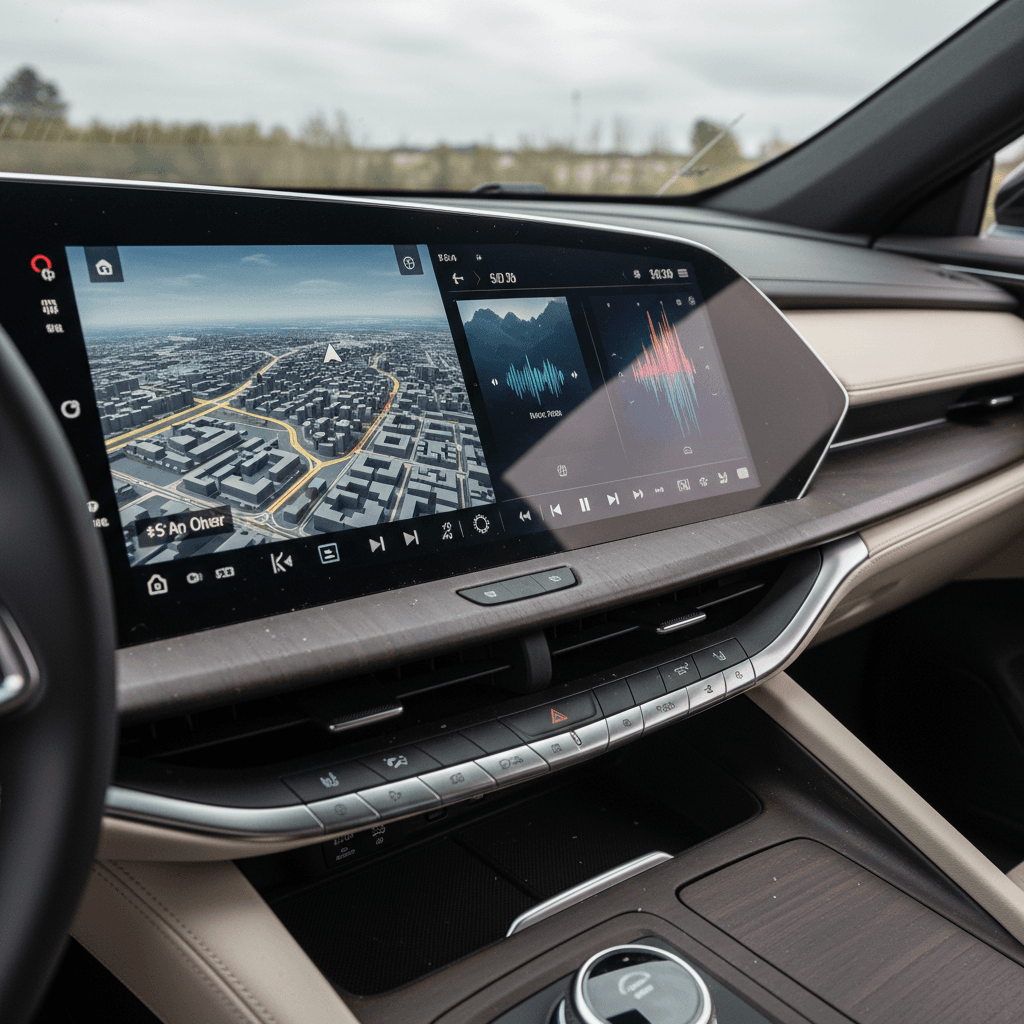
Quick resets and DIY fixes for Lyriq infotainment glitches
When the Lyriq’s infotainment system acts up, you don’t always have to run straight to the dealer. There are a few owner-tested resets and workarounds that can clear a temporary software hiccup, especially after a new update or app install.
DIY steps to tame a misbehaving Lyriq screen
1. Try the soft reset
Press and hold the steering‑wheel <strong>call end / hang‑up</strong> button for about 10–15 seconds. In many Lyriqs, this forces the right side of the display (infotainment) to reboot, similar to power‑cycling a tablet.
2. Do a "door open" power cycle
If the screen stays frozen or pixelated, shut the vehicle off, open the driver’s door, and leave it open. Walk away with the key fob and give the car 10–30 minutes to fully power down before you return and restart.
3. Reset audio via volume knob
For brief <strong>CarPlay/Android Auto audio dropouts</strong>, some owners have luck clicking the center of the volume wheel to pause, then clicking again to resume. It’s not elegant, but it often wakes the audio stack back up.
4. Tame media source priority
If your Lyriq keeps trying to play the “wrong” device, jumping between Bluetooth and CarPlay, open the Phone settings on the center screen, tap the gear icon, and <strong>disable media source priority</strong> for your phone.
5. Delete and re‑pair your phone
Chronic phone projection issues? Remove your phone from the Lyriq’s Bluetooth list, then delete the car from your phone. Re‑pair fresh, and if available, switch cables or USB‑C ports to rule out a flaky connector.
6. Check for pending updates
From the center display, dive into Settings → Software or Updates and look for available OTA downloads. Installing a pending update can clear known bugs, just be sure you have stable Wi‑Fi or cellular coverage first.
When NOT to DIY
Software updates, OTAs, and dealer flashes
The Lyriq’s story is really a story about software. GM uses both over‑the‑air (OTA) updates and in‑dealer module flashes to patch bugs, improve apps, and occasionally add features. That’s good news for long‑term ownership, but it also means your experience depends heavily on whether your car is actually up to date.
Why staying current on software matters
Make updates less painful
OTAs: what they’re good at
- Infotainment polish – Bug fixes for the radio, Bluetooth, built‑in streaming apps, and minor UI tweaks.
- Maps and connectivity – Updated navigation data, Super Cruise maps (if equipped), and app compatibility.
- Lightweight patches – Small stability fixes that don’t require a technician and a diagnostic laptop.
Dealer flashes: when you need them
- Persistent screen failures – Repeated freezing, black screens, or pixelation even after resets.
- OTA that "bricked" the car – Vehicle won’t start properly after an update, or throws new error codes.
- Recall campaigns – GM occasionally issues formal recalls for software that must be handled at the dealership.
Don’t ignore update notices
Living with the Lyriq infotainment system day to day
On its best days, the Lyriq’s infotainment lives up to the styling: the curved display is bright, the Google‑based navigation is clear, and the sound system is pure Cadillac. On its worst days, you’re stabbing at a screen that just stares back at you. Daily habits can tip the balance in your favor.
Habits that make Lyriq infotainment less frustrating
Small routines can smooth over rough edges in the software.
Give it a beat at startup
Pick one phone strategy
Use home Wi‑Fi
Lock in your layout
Document weird behavior
Lean on warranty while you have it
How infotainment issues affect used Cadillac Lyriq buyers
If you’re shopping for a used Cadillac Lyriq, infotainment problems are less about cosmetic annoyance and more about predicting how the previous owner treated the car. A Lyriq that’s never seen a dealer since delivery and has skipped multiple updates is a very different proposition than one that’s had recalls and software campaigns handled promptly.
Red flags for used Lyriq shoppers
- Owner mentions "quirky screens" but can’t produce service records or recall paperwork.
- Screen behavior during test drive: laggy transitions, incomplete widgets, or error pop‑ups.
- Outdated apps and maps that suggest OTAs have been ignored for a long time.
Good signs you’ve found a keeper
- Documented recall and software history in the service file.
- Owner can name at least one recent update and whether it improved anything.
- Infotainment feels boring on the test drive, in a good way. No drama, just working screens.
How Recharged can help
Checklist before you buy a used Cadillac Lyriq
In‑person infotainment check for a used Lyriq
1. Power‑cycle the car a few times
Start, drive a short loop, shut down, and restart. Watch for slow boots, black screens, or icons that appear and disappear between cycles.
2. Test CarPlay or Android Auto thoroughly
Connect your phone via USB and wireless (if equipped). Stream audio, use navigation, and place a call. Any <strong>recurring dropouts or freezes</strong> during a 15–20 minute drive are a yellow flag.
3. Try multiple audio sources
Flip between FM, Bluetooth, built‑in streaming apps, and your phone. Make sure volume levels are consistent and the car doesn’t randomly switch sources.
4. Stress the camera system
Shift into Reverse several times in a row and use different camera views. A long delay or frozen view could indicate deeper software trouble.
5. Dive into settings and app menus
Scroll through the entire settings tree. You’re looking for lag, half‑rendered menus, or options that crash you back to the home screen.
6. Ask for a printout of software and recall history
A good seller, or a marketplace like <strong>Recharged</strong>, should be willing to show you what’s been done: OTA updates, in‑dealer campaigns, and any previous complaints about the infotainment system.
FAQ: Cadillac Lyriq infotainment issues
Frequently asked questions about Lyriq screens and software
Bottom line on Cadillac Lyriq infotainment problems
The Cadillac Lyriq delivers the kind of quiet, confident drive that should make you forget about gas stations altogether. Its infotainment issues don’t change that core goodness, but they can absolutely color your day‑to‑day experience. Frozen screens, twitchy CarPlay, and layout resets are mostly symptoms of a young software stack still growing up.
If you already own a Lyriq, your best tools are regular updates, simple resets, and a dealer who takes software seriously. If you’re shopping used, pay close attention to how the screens behave and what’s in the service file. And if you’d rather not play software detective at all, consider buying through a specialist like Recharged, where a Recharged Score battery and systems report, and a transparent digital buying process, take a lot of the guesswork out of owning a tech‑heavy EV like the Lyriq.