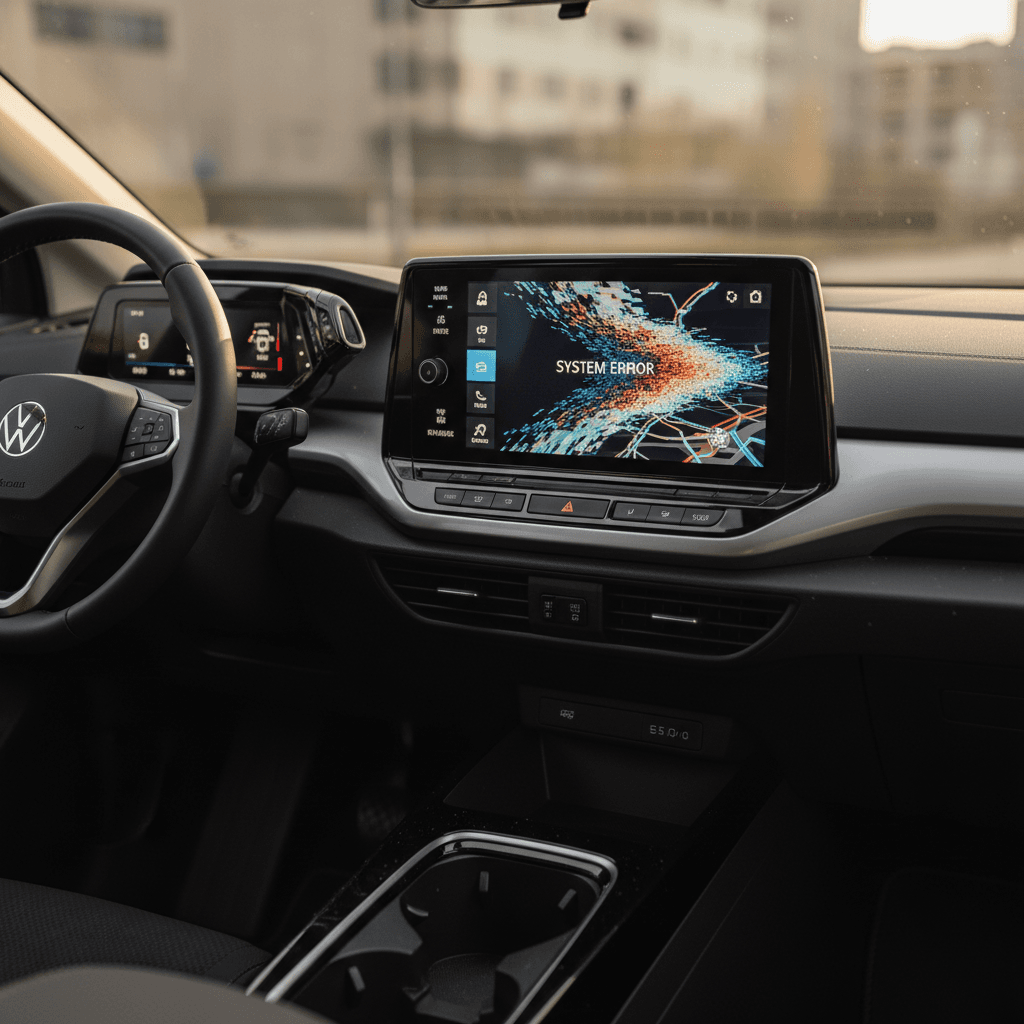
If you own a VW ID.4, you already know the truth: the car is pleasant, the ride is calm, and the infotainment can be a menace. Owners report everything from frozen touchscreens and random reboots to both screens going black at once. This guide walks you through the VW ID4 infotainment issues that come up most often, and, more importantly, how to fix them or at least tame them.
Who this guide is for
Why VW ID.4 infotainment issues are so common
Volkswagen tried to go from zero to Tesla in one software generation. The ID.4 runs a complex stack, big touchscreen, haptic sliders, over-the-air updates, always‑connected services, on hardware that’s not exactly a gaming PC. The result is a car that drives like an old‑world Volkswagen but sometimes behaves like a beta‑build smartphone.
Three forces behind ID.4 infotainment glitches
Understanding the causes helps you choose the right fix
1. Underpowered hardware
2. Young software platform
3. Connected-car dependencies
It’s not just cosmetic
Most common VW ID.4 infotainment problems
- Touchscreen becomes unresponsive or lags several seconds behind your taps.
- Main display suddenly reboots while driving, audio cuts, climate pauses, then comes back.
- Both the center screen and the driver display stay black when you start the car, even though the car will shift into gear and drive.
- Infotainment hangs on the “Welcome to Volkswagen” screen and never fully boots.
- Backup camera fails with an error message or shows a black screen.
- Wireless Apple CarPlay/Android Auto drops out, then the whole system restarts.
- Navigation and voice commands time out or refuse to load data.
Model years most affected
Quick fixes for VW ID.4 infotainment issues
Before you let a dealer tear into control modules, try the simple stuff. The ID.4 has several layers of reset, from a soft reboot of the main screen to a full power‑down, that often clear temporary bugs. Work from least invasive to most invasive.
Step‑by‑step: Basic VW ID.4 infotainment reset flow
1. Soft reset the infotainment screen
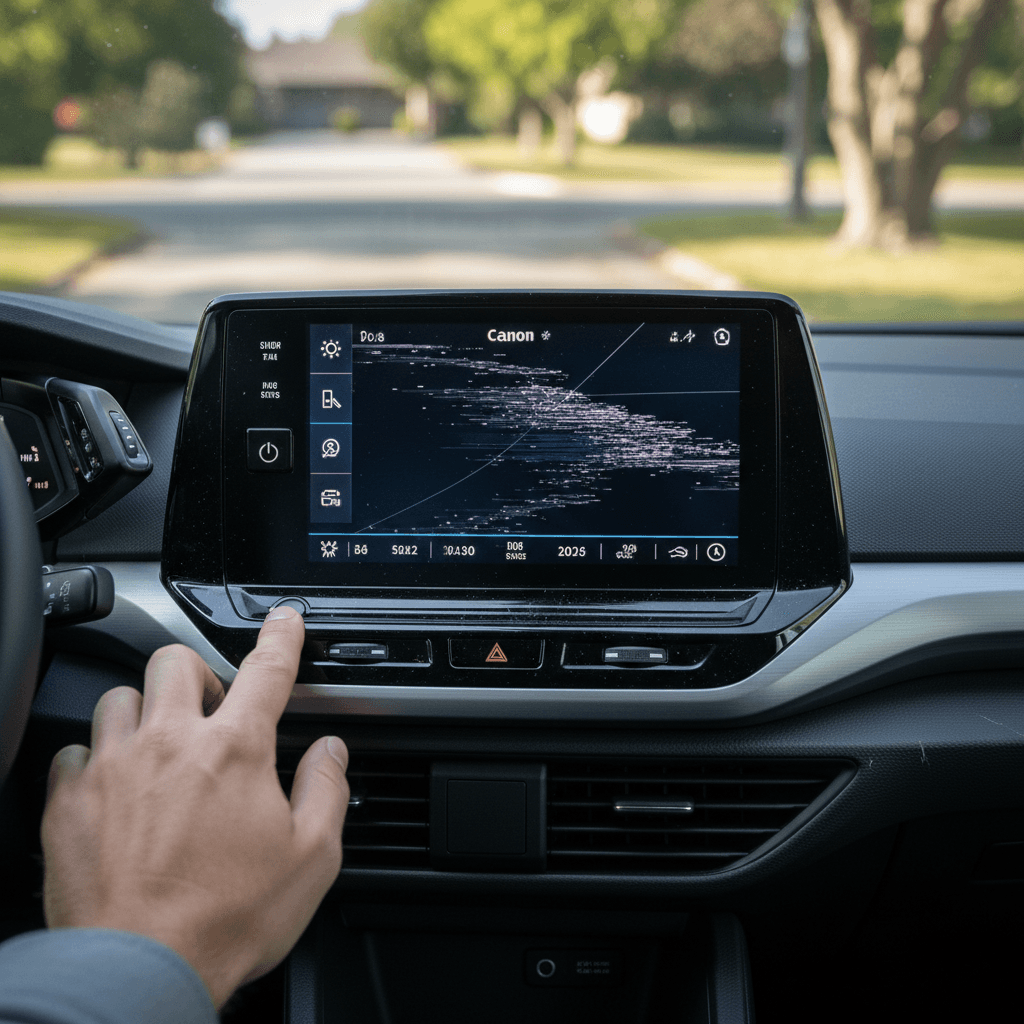
While parked, press and hold the capacitive power/volume button under the main screen for about <strong>10–15 seconds</strong>. The display will go black, then reboot with the VW logo. This clears most random freezes and laggy behavior.
2. Reboot with seatbelt on (if the first try fails)
Some owners report better luck when seated with the driver seatbelt fastened before holding the power button. It ensures the car is fully “awake” and can accept the reset command.
3. Power-cycle the car properly
Shut the car down, exit, lock it, and walk away with the key for at least 10 minutes. Let the ID.4 go fully to sleep before you try again. Quick in‑and‑out cycles can keep a buggy session half‑alive.
4. Disconnect phones and CarPlay/Android Auto
Temporarily disable wireless CarPlay/Android Auto and forget paired phones. If the system becomes stable with no phone connected, you’ve likely isolated a Bluetooth or app‑projection conflict.
5. Try a different profile
Create a fresh driver profile or log out of your VW ID user account in the car. Corrupted cloud settings can cause odd behavior; a clean local profile sometimes brings the system back to normal.
6. As a last DIY step, 12‑volt battery reset
For stubborn black‑screen situations, some owners disconnect the negative terminal of the 12‑volt battery for a few minutes to force a hard reset. Only attempt this if you’re comfortable working around car electronics, or let a shop do it. Never do it with the car plugged in or “on.”
Safety first with hard resets
Deep-dive fixes: resets, updates, and hardware checks
If you’re rebooting the screen every other commute, you’re beyond the realm of the occasional software burp. At that point, it’s time to check software versions, clean up settings, and, if needed, push your dealer toward hardware inspection.
Common ID.4 infotainment symptoms and likely fixes
Use this as a starting point. Exact diagnosis depends on build year, hardware, and software version.
| Symptom | Likelihood it’s Software | Home Fixes to Try First | When to Suspect Hardware |
|---|---|---|---|
| Occasional lag, slow screen changes | High | Soft reset; clear phone connections; disable unused widgets/apps | Rarely, only if performance gets progressively worse |
| Random reboot once every few weeks | Medium | Check for software updates; note when it happens (temperature, charging, navigation) | If reboots start happening multiple times a day |
| Center screen black, cluster OK | Medium | Soft reset; full power‑cycle; verify 12‑volt battery health | If screen never boots or only shows logo then dies |
| Both screens dark but car will drive | Medium | Full vehicle sleep; 12‑volt reset (or dealer); check for recalls or TSBs | If this repeats or persists after update, control module may be failing |
| Backup camera errors or black image | Medium | Clean camera; soft reset; check for software update; test in Park and Reverse | If video never appears and other functions seem fine, suspect camera module or wiring |
| CarPlay/Android Auto drops, then system reboots | High | Try different phone cable, disable wireless, test with another phone | If it happens even with all phones deleted and projection off |
When in doubt, document the behavior, photos, videos, times, temperatures, before heading to a dealer.
1. Confirm your software version
In the infotainment settings, look up your ID. software version (2.x, 3.x, 4.x, etc.). Volkswagen has pushed several updates that specifically target stability, responsiveness, and camera/parking bugs. If you’re on an early build and haven’t visited a dealer since 2023, you may be missing important fixes.
If your car is eligible for a campaign or service action to update software, that work is typically performed by a Volkswagen dealer at no charge.
2. Clean up profiles and connections
If you’ve had the car a while, or bought it used, your ID.4 may be carrying digital baggage: old owner accounts, multiple phones, half‑configured services. Removing unused driver profiles, cloud logins, and Bluetooth devices can resolve mysterious slowdowns.
Think of it like cleaning up a cluttered laptop user account before you assume the hardware is dying.
Factory reset with caution
If software housekeeping and resets don’t tame the problem, you may be dealing with failing hardware, often the control unit that drives the screens or the Car‑Net/communications module. These issues typically require dealer diagnostics and part replacement, not just another reboot.
How to prevent future ID.4 infotainment problems
Habits that make ID.4 infotainment more livable
You can’t rewrite VW’s code, but you can stack the deck in your favor
Let the car finish booting
Avoid endless short trips
Keep the 12‑volt battery healthy
Schedule software updates wisely
Treat CarPlay/Android Auto as a suspect
Limit background clutter
When to call the dealer (and what to say)
There’s a threshold where DIY resets cross over from “quirk” into “this needs a technician.” If your ID.4 routinely leaves you without a working display, or your backup camera is more error message than image, it’s time to loop in Volkswagen, or, for used cars, a trusted EV specialist.
Red flags that justify a dealer visit
Screens fail multiple times per week
If the main display or cluster goes black, reboots, or freezes several times a week despite soft resets, document it and book an appointment.
Loss of essential functions
You can’t reliably access defrost, climate, or driver‑assist settings because the screen won’t cooperate. That’s a usability and safety concern, not a minor annoyance.
Persistent camera or sensor errors
Parking/surround view errors that persist after a reset may indicate a failing camera module or broken wiring, not just bad software.
Screens dark on startup and never recover
If the car will drive but screens stay dark or stuck on a logo, don’t keep experimenting while commuting. Get it diagnosed.
Software update won’t complete
If over‑the‑air or dealer‑installed updates fail or revert, there may be a deeper problem with storage or control modules.
How to talk to the service advisor
If you’re shopping used and you encounter an ID.4 that has a thick folder of infotainment complaints but no clear fix, multiple computers replaced, the same behavior returning, consider walking away or negotiating accordingly. Persistent, unresolved electronics problems are exactly the kind of headaches you don’t want to inherit.
Used VW ID.4 buyer’s checklist: infotainment edition
The good news: plenty of ID.4s go about their lives with only occasional software weirdness. The bad news: a few cars are chronic problem children. If you’re evaluating a used ID.4, especially a 2021–2023, treat the infotainment like a major component, not an optional extra.
Test‑drive script for ID.4 infotainment
1. Cold start test
Ask the seller not to start the car beforehand. From a true cold start, watch how quickly the screens boot, how responsive the touch controls are, and whether any error messages appear.
2. Camera and sensor check
Shift into Reverse and test the backup camera and 360° view if equipped. Look for lag, black screens, or “surrounding area view unavailable”‑type messages.
3. Connect your phone
Pair your phone via Bluetooth and, if available, CarPlay/Android Auto. Run navigation and streaming together. The system shouldn’t lock up or reboot when juggling basic tasks.
4. Highway test
On a short highway run, use navigation, adjust climate, and tweak driver‑assist settings. If the screen reboots or freezes under that light load, assume it will be worse in daily life.
5. Settings tour
Scroll through as many menus as you can, vehicle settings, driver assistance, charging, profiles. Random hangs or crashes here can indicate deeper software or storage problems.
6. Ask for history and diagnostics
Request service records for any infotainment complaints, control‑unit replacements, or software campaigns. A clean history plus a smooth test‑drive is what you’re after.
How Recharged helps with ID.4 shopping
Ready to find your next EV?
Browse VehiclesFAQ: VW ID.4 infotainment issues and fixes
VW ID.4 infotainment troubleshooting FAQ
Bottom line: living with, and fixing, ID.4 infotainment
The VW ID.4 is a fundamentally likeable EV wrapped around a sometimes‑exasperating software stack. The infotainment issues are real, frozen screens, random reboots, black‑out clusters, but they’re often manageable once you know the reset rituals, keep software current, and watch for 12‑volt or hardware warning signs. Where things cross the line from “quirky” to “unacceptable” is when core functions disappear regularly or the system refuses to boot.
If you already own one, treat this guide as your playbook: start with soft resets, tidy your digital clutter, then escalate methodically to dealer diagnostics. If you’re shopping used, put the infotainment through its paces the same way you would the battery and charger. And if you’d rather not decode all of this solo, a vetted ID.4 from Recharged, with a transparent Recharged Score Report and EV‑savvy support, gives you a clearer picture of the car’s electronic temperament before it ever hits your driveway.