
If you own, or are thinking about buying, a Tesla, you’ve probably seen the red eye icon and heard about Tesla Sentry Mode. It’s marketed as a built‑in security guard for your car, but what does that actually mean day to day? This guide explains Tesla Sentry Mode in plain English: how it works, what it records, how much battery it uses, and the smartest way to set it up so you’re protected without sacrificing range.
At a glance
What is Tesla Sentry Mode?
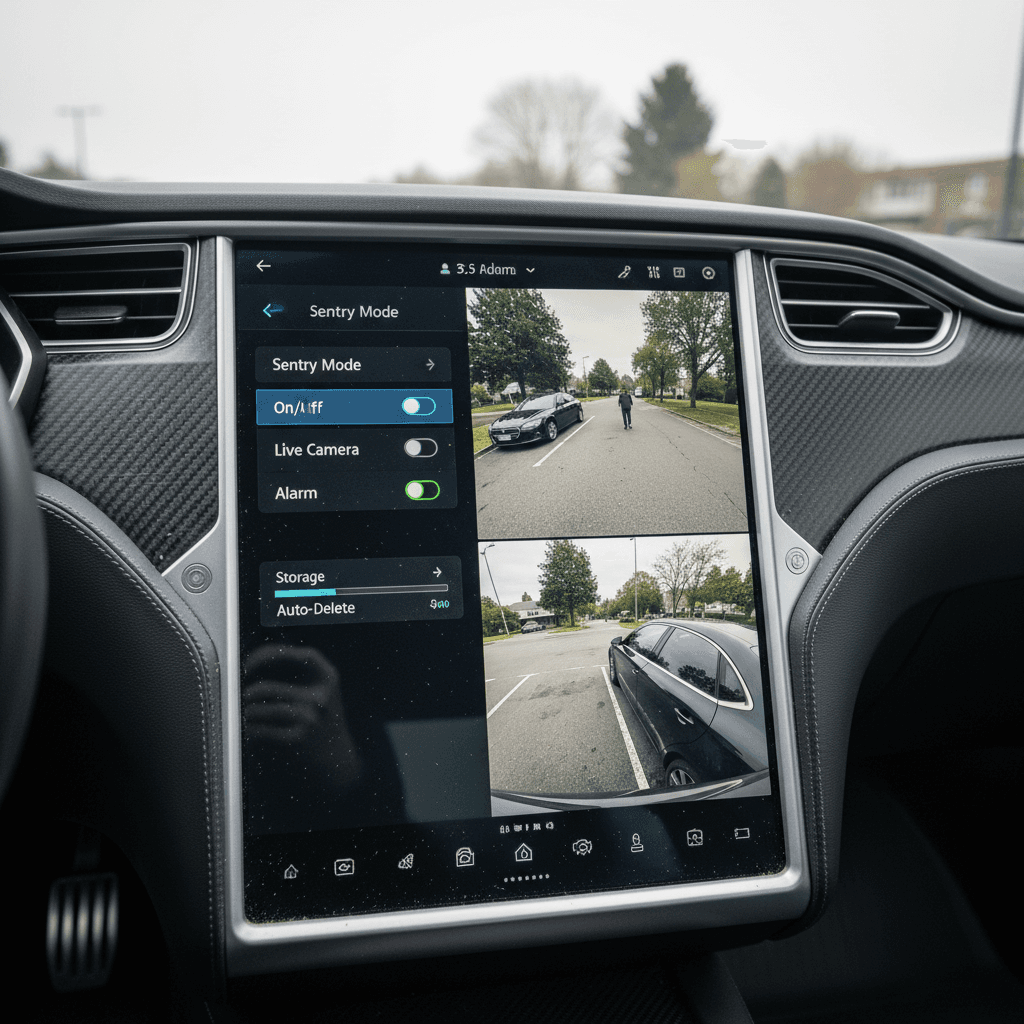
Sentry Mode is Tesla’s always‑on security feature that uses the car’s external cameras, microphones (where equipped) and sensors to watch for potential threats when the vehicle is parked. Think of it as a combination of a dashcam, motion‑activated security camera, and car alarm, all running through the car’s computers.
- When the car is parked and Sentry Mode is on, it keeps several cameras and the main computer awake.
- If someone approaches or bumps the car, Sentry Mode marks that as an event and saves video clips to your USB drive.
- For more serious triggers, like a broken window or significant impact, it can flash lights, display a warning on the center screen, and sound the alarm.
- With the Tesla app, you can review clips later and, on most modern Teslas, view Live Camera feeds in real time.
Why owners love it
How Sentry Mode Works, Step by Step
Three phases of Sentry Mode
What your Tesla is actually doing when Sentry Mode is on
1. Standby
When you park and Sentry Mode is enabled, the car enters Standby:
- Cameras and sensors are awake, watching the surroundings.
- The computer is analysing motion to decide what’s normal vs. suspicious.
- No clips are saved yet; it’s just monitoring.
2. Alert
If someone approaches closely, loiters, or lightly bumps the car, Sentry Mode moves to Alert:
- The center screen may show a glowing red eye or security message.
- The car starts recording short video clips from multiple cameras.
- An event is bookmarked on your USB drive.
3. Alarm
If Sentry detects a more serious threat, like a window breaking or a strong impact, it escalates to Alarm:
- The alarm sounds and lights flash.
- Interior display can show a full‑screen warning.
- Clips are saved; you may get a notification through the Tesla app.
Throughout all of this, Sentry Mode is using the same camera system as Tesla’s Dashcam, but it runs only while the car is parked. When you drive away, Dashcam takes over continuous recording, and Sentry Mode goes to sleep until you park again (or disable it).
Sentry Mode vs. Dashcam, Dog Mode & Camp Mode
Dashcam vs. Sentry Mode
- Dashcam records while you’re driving. It constantly buffers footage and saves clips when you honk the horn, tap the Dashcam icon, or when a crash is detected.
- Sentry Mode is for when you’re parked. It wakes the car up, watches for suspicious activity and saves event‑based clips.
- Both features share the same storage device and file structure, so managing or formatting the USB drive affects both.
Dog Mode & Camp Mode
- Dog Mode keeps the cabin climate comfortable for pets while parked and shows a message on the center screen. You can optionally run Sentry Mode at the same time, but the car will use more power.
- Camp Mode keeps HVAC and some interior functions active if you’re sleeping or resting in the car. Again, Sentry can run, but power consumption stacks.
- On newer software, Tesla will warn you if your chosen combination of modes will draw significant battery while parked.
Modes add up
Battery Drain: How Much Power Sentry Mode Uses
Because Sentry Mode keeps the cameras and main computer awake, it draws far more power than a typical “sleeping” EV. Older software versions often used the equivalent of 7–14% of the battery per 24 hours on popular models like the Model 3 and Model Y. Recent software updates have cut that by roughly 40% in many cases, but there’s still meaningful drain, especially in cold weather.
Real‑world Sentry Mode consumption (typical ranges)
Why it uses so much power
For daily life, this means you should think of Sentry Mode like an always‑on home security system. It’s incredibly useful in the right context, crowded city streets, unknown parking lots, airport garages, but it’s not something you necessarily want running 24/7 everywhere you go.
USB Drive & Storage Requirements for Sentry Mode
To actually save video, your Tesla needs a properly formatted USB drive (or SSD) plugged into a supported USB port. Without it, Sentry Mode can still trigger alarms and alerts, but you won’t have clips to review later.
Recommended USB specs for Sentry Mode & Dashcam
These are typical requirements listed in recent Tesla owner’s manuals. Always check your specific model’s manual for the latest details.
| Requirement | Recommendation | Why it matters |
|---|---|---|
| Capacity | At least 64 GB (128 GB+ preferred) | Multiple cameras and frequent events can fill smaller drives quickly. |
| Write speed | Sustained 4 MB/s or higher | Video is a constant stream; slow drives drop frames or stop recording. |
| USB standard | USB 2.0 compatible (USB 3.0 OK if it supports 2.0) | The car’s ports must be able to communicate reliably with the drive. |
| Formatting | Tesla’s in‑car format tool (recommended) | Automatically sets up the required partition and TeslaCam folder. |
| Location | Glovebox USB port on newer cars; front console ports on some older models | Certain ports only provide power, not data. Recording works only on data ports. |
Using a slow or undersized drive is one of the most common reasons Sentry Mode recordings fail or go missing.
How to set up a USB drive for Sentry Mode
1. Choose the right drive
Pick a high‑endurance USB drive or small SSD with at least 64 GB of storage. If you leave Sentry Mode on regularly, 128 GB or more is a safer bet.
2. Plug into the correct port
On most newer Teslas, use the <strong>glovebox USB port</strong> for Dashcam/Sentry storage. Earlier cars may use the front console data ports, check your owner’s manual.
3. Format inside the car
On the center screen, go to <strong>Controls > Safety > Format USB Drive</strong>. This wipes the drive and creates the TeslaCam folder automatically.
4. Confirm Dashcam icon shows
You should see a Dashcam icon on the top of the screen. If it’s greyed out or shows an error, the car isn’t happy with the drive, try re‑formatting or swapping it.
5. Test with a manual save
Tap the Dashcam icon while driving to save a clip, then later open the viewer or check on a computer to confirm files are being written correctly.
Don’t cheap out on storage
How to Turn Sentry Mode On & Customize Settings
Tesla has steadily added more control over Sentry Mode, so you can use it where it matters and skip it where it doesn’t. The exact menu wording can vary slightly by model and software version, but the flow is similar.
- On the center screen, tap Controls then look for Safety or Safety & Security.
- Toggle Sentry Mode to ON. Some versions offer options like “On”, “Off”, or “On except at Home/Work/Favorites”.
- If available, tap the Sentry Mode settings button to manage location‑based exclusions such as Exclude Home, Exclude Work, or specific Favorites.
- Decide whether you want Sentry to activate automatically whenever you leave the car, or only when you manually enable it.
- Open the Tesla app and verify that the Sentry Mode toggle is visible. On supported models, you’ll also see a Live Camera option once Sentry is active.
Enabling Sentry from the app
Privacy, Legal Questions & When You Should (or Shouldn’t) Use It
Sentry Mode raises understandable questions about privacy and legality. While Tesla builds in some safeguards, like muting certain microphones or blurring information in shared clips in some markets, responsibility ultimately rests with you as the owner.
Key privacy and legal considerations
Sentry Mode is powerful, but you need to use it thoughtfully
Recording people & public spaces
In most U.S. locations, it’s legal to record video of public spaces where there’s no reasonable expectation of privacy, like parking lots or streets. Still, local laws vary, especially outside the U.S.
If you export clips, avoid posting identifiable footage of bystanders online without a legitimate reason.
Your own data & insurance
Sentry Mode clips live on your USB drive, and you control when to share them. In a hit‑and‑run or vandalism case, those videos can help police and insurers identify what happened.
At the same time, any video can potentially be used as evidence if requested during an investigation or claim.
Respect local rules
Best-Practice Sentry Mode Settings for Daily Life
The ideal Sentry Mode setup balances security and battery preservation. Here’s how most owners and fleets dial it in.
Recommended Sentry Mode strategies
1. Exclude truly safe locations
Turn on <strong>Exclude Home</strong> if you have a private driveway or garage, and consider excluding Work if your parking is secure and monitored. There’s little value in burning energy to watch an empty locked garage.
2. Keep it on in public & unknown areas
Use Sentry Mode in public lots, street parking, hotels, airport garages and unfamiliar neighborhoods. This is where hit‑and‑runs and vandalism are most likely, and where video evidence matters most.
3. Watch your state of charge
If you’re leaving the car parked for days without charging (airport trip, long hike, etc.), ask yourself: “How much range can I afford to lose?” Consider turning Sentry off or using a lower‑drain configuration when your state of charge is already low.
4. Use Live Camera sparingly
Checking Live Camera repeatedly from your phone wakes the car and adds incremental drain. Treat it as a spot‑check tool, not a 24/7 live stream.
5. Clean lenses and test regularly
Dirty cameras won’t capture useful video. Wipe the exterior lenses occasionally and spot‑check recordings so you’re not surprised by bad or missing footage after an incident.
6. Rotate or back up footage
If you use Sentry Mode heavily, download important clips and occasionally re‑format your drive. This reduces corruption risk and keeps the system running smoothly.
Fleet tip
Used Teslas: What to Check About Sentry Mode Before You Buy
When you’re shopping the used market, Sentry Mode tells you more than just how the car behaves today. It can also hint at how the previous owner used, and possibly abused, the vehicle.
- Confirm that Dashcam and Sentry features are present and working on the test drive. Very early or heavily modified cars may behave differently.
- Check that a USB drive is installed and recognized by the car. If not, budget for a proper drive as part of your purchase.
- Look for recent Sentry events in the viewer. A history full of crowded city‑street parking may mean more exposure to curb rash, door dings or minor impacts.
- Ask the seller how they typically stored the car. An EV parked long‑term with Sentry Mode on and rarely charged could have experienced more high‑depth cycling and deep discharges than ideal.
At Recharged, every used EV we list includes a Recharged Score battery health report, so you’re not guessing how previous owners used features like Sentry Mode, fast charging, or long‑term parking. Our specialists can walk you through what the data actually means for real‑world range and longevity before you buy.
Tesla Sentry Mode FAQ
Frequently Asked Questions About Tesla Sentry Mode
Bottom Line on Tesla Sentry Mode
Tesla Sentry Mode is one of the most capable built‑in security features in any modern vehicle. It turns your parked Tesla into a smart surveillance system that can catch hit‑and‑runs, vandalism and theft attempts that traditional alarms miss. The trade‑offs are real, extra battery drain and some privacy considerations, but with the right settings, you can get strong protection without giving up too much range.
If you already own a Tesla, take a few minutes this week to format a quality USB drive, tune your Sentry exclusions and test your recordings. And if you’re shopping for a used Tesla or other EV, platforms like Recharged give you a verified view into battery health and usage patterns, so you know exactly how security features and charging habits have shaped the car you’re about to buy.