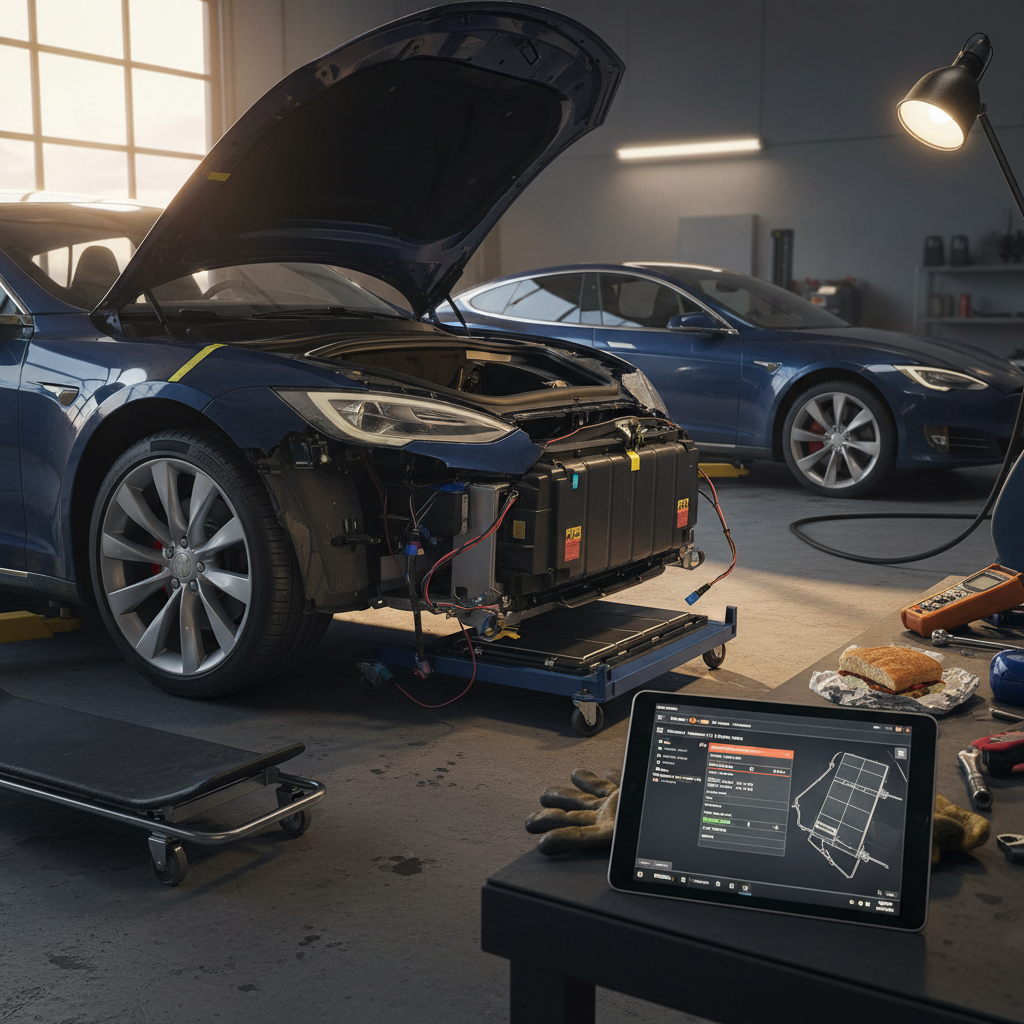
When the Tesla Model 3 screen fails, goes black, freezes, or refuses to wake up, it feels like the car’s brain just checked out. Your speedometer, climate, navigation, even the glove box hinge on that slab of glass. The good news: not every failure is a catastrophe. The important part is knowing what’s normal, what’s dangerous, and when it’s time to call in help.
Think of it as a computer crash
Understanding Tesla Model 3 screen failure
On the Model 3, almost everything runs through the center display. Underneath is the infotainment computer (often called the MCU or “media control unit”), a wiring harness, a 12‑volt battery that powers low‑voltage systems, and the screen panel itself. A "screen failure" can mean several different things:
- Temporary software crash that forces the screen to reboot mid‑drive
- Frozen or laggy interface that stops responding to touch
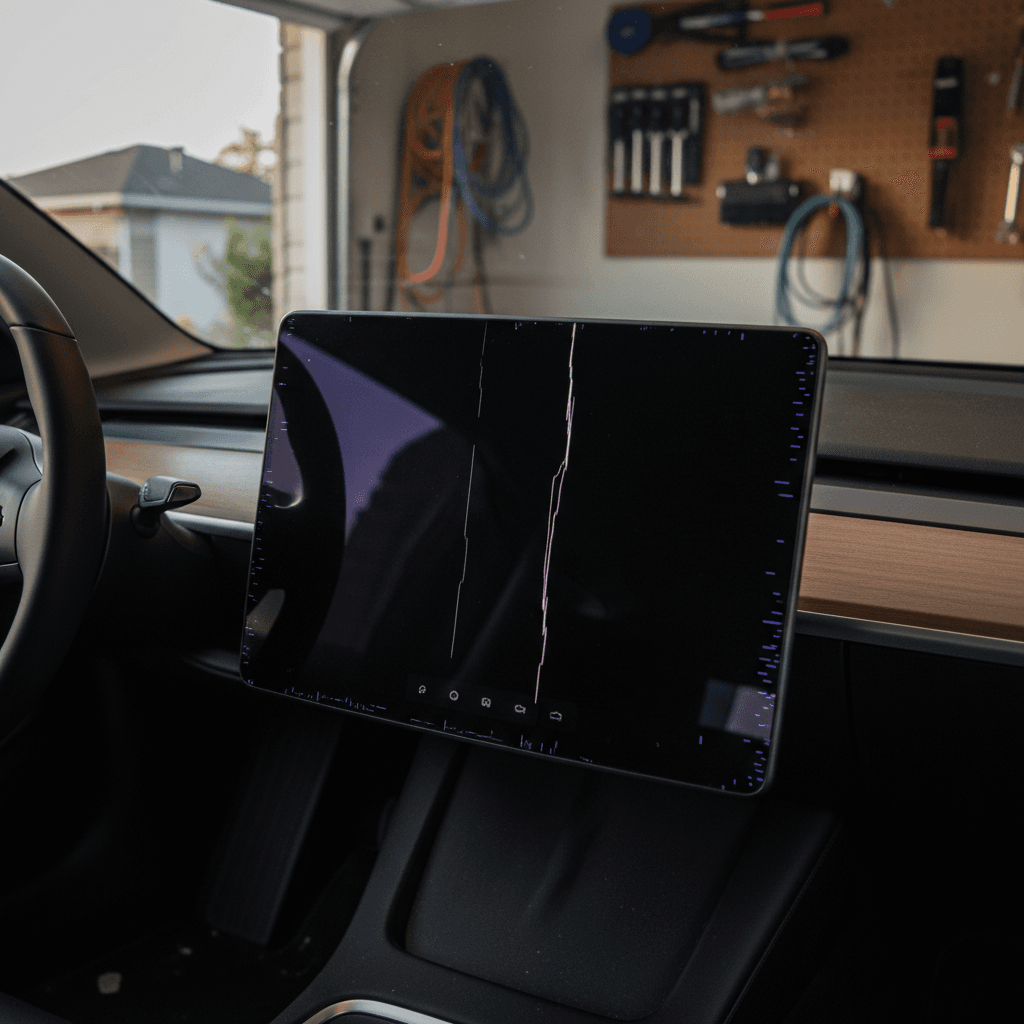
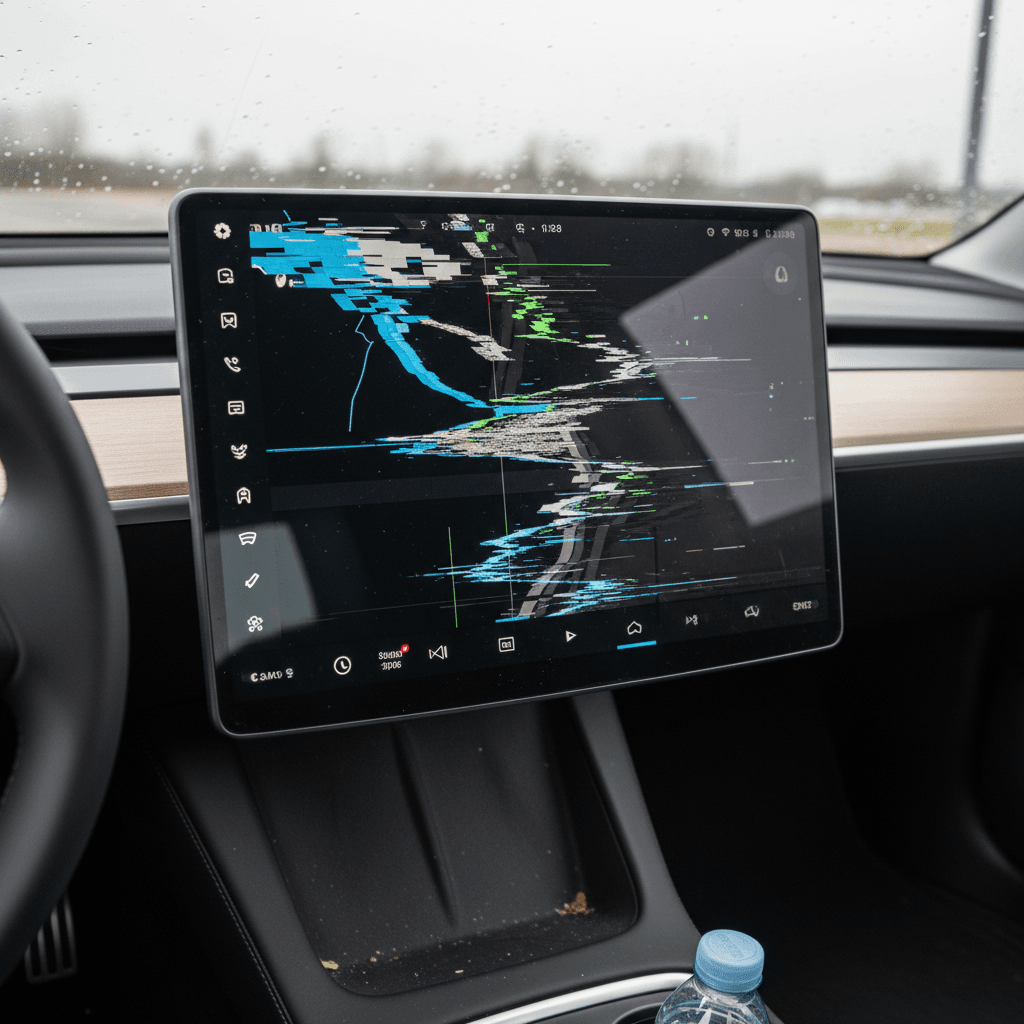
- Display glitches (flickering, colored lines, ghost touches) while the car still drives fine
- Complete black screen that doesn’t come back even after a reset
- System errors tied to power or overheating that repeatedly knock the screen offline
In practice, you’ll see everything from a three‑second blackout that fixes itself to repeat failures that point to a dying computer or display. Owners across the Tesla forums and Reddit have reported blackouts in heat, during or after software updates, and occasionally at random on both newer and older Model 3s.
How Model 3 screen failures usually behave
Is it dangerous when the Model 3 screen goes black?
It’s unnerving, absolutely. But Tesla designed the Model 3 so that core driving functions keep working even if the screen dies. The powertrain, steering, and friction brakes are controlled by separate systems. Owners who had brief blackouts while using Autopilot or Full Self‑Driving report that the car continued to steer and accelerate normally while the screen silently rebooted in the background.
Still works when screen is out
- Steering, acceleration, and braking remain active.
- Turn signals themselves still operate, even if you can’t hear the click.
- Drive, Reverse, Neutral, and Park inputs via stalk/buttons or column controls still register.
- Hazard lights physically work even if you don’t hear the chime.
Things you temporarily lose
- Digital speed readout and navigation guidance.
- Climate control adjustments and seat heaters.
- Blind‑spot camera view and Autopilot graphics.
- Glove box, wipers, and other on‑screen toggles.
Safety first if the screen fails while driving
Common Tesla Model 3 screen failure symptoms
How Tesla Model 3 screen failure shows up in the real world
Match what you’re seeing to these common patterns
1. Brief black screen, then back to normal
The display suddenly goes black for a few seconds, then the Tesla logo appears and everything returns to normal.
Most likely: Infotainment reboot or minor software glitch.
2. Frozen, laggy, or unresponsive touch
Map won’t move, buttons don’t respond, in‑car apps stutter. Audio may cut out before the screen crashes.
Most likely: Memory leak, buggy app, or heat‑related slowdown.
3. Glitches, lines, or color blocks
Pink/green lines, half the screen inverted, or static‑like patterns.
Most likely: Failing display panel, loose connector, or GPU/graphics fault.
4. Screen never wakes up
Totally black display when you enter the car, no Tesla logo, no response after taps or scroll‑wheel reset.
Most likely: Deeper hardware fault, 12V issue, or bricked MCU.
5. Failure in high heat or while supercharging
Screen locks up or reboots at a fast charger or in hot weather, then behaves better when cool.
Most likely: Thermal stress or aging components being pushed.
6. Repeated crashes after an update
Issues start immediately after a new software version, sometimes multiple black screens on the same trip.
Most likely: Software bug or a marginal component exposed by the update.
Quick checklist: what to do when your screen fails
If your Tesla Model 3 screen fails while driving
1. Stay calm and keep driving straight
The car will keep steering, accelerating, and braking. Focus on the road; don’t stare at the dead screen.
2. Use mirrors and road feel
Without the digital speedometer and blind‑spot camera, rely on your mirrors, traffic flow, and road markings. Drive conservatively.
3. Signal and pull over when safe
Put on your turn signal (even if you don’t hear the click), move to the right lane, and park in a safe spot off the road if you can.
4. Perform a soft reset
While parked, hold both steering‑wheel scroll wheels until the display goes black and the Tesla logo appears. Wait for the system to fully restart.
5. Log the time and conditions
Make a quick note on your phone: time, temperature, if you were using FSD/Autopilot, supercharging, or running specific apps (games, browser).
6. Schedule service if it happens again
One random reboot can be a fluke. Two or more within a short time, especially with visual glitches or heat, deserve a service appointment.
Step-by-step troubleshooting for Model 3 screen issues
Before you assume your Model 3 needs a new screen or computer, work through these steps. They start with non‑invasive, owner‑friendly fixes and move toward things that usually require Tesla service.
Model 3 screen failure troubleshooting steps
Work from left to right: start with the easiest fixes
| Step | What to do | When to try it | What it tells you |
|---|---|---|---|
| Soft reset | Hold both scroll wheels until you see the Tesla logo. | First time you see a freeze, lag, or brief black screen. | If this clears the issue and it doesn’t return, it was likely a transient software glitch. |
| Full power cycle | Use Settings → Safety → Power Off, wait a few minutes, then press the brake pedal. | If you have recurring lag or intermittent glitches. | If the car feels smoother after, the issue may be software or memory‑related. |
| Remove USB hubs/accessories | Unplug third‑party hubs, dashcams, and game controllers. | If crashes happen with lots of accessories connected. | If crashes stop, a hub or device may be overloading the system. |
| Check 12V battery status | Look for low‑voltage or electrical system warnings in the app or on‑screen before it failed. | On older Model 3s, especially over 4–6 years old. | If Tesla flags low‑voltage issues, the 12V battery or power delivery may be part of the problem. |
| Update (or rollback) software | Install pending updates; if problems started with an update, mention that in your service request. | After you notice a pattern tied to a specific version. | Helps Tesla determine if you’ve hit a software bug versus failing hardware. |
| Schedule service | Use the Tesla app, describe timing, frequency, and attach photos or video where possible. | If anything repeats, lasts more than a minute, or prevents the screen from waking. | At this point, Tesla should pull logs and test the MCU, screen, and low‑voltage system. |
If at any step you feel unsafe or the car behaves unpredictably, stop and contact Tesla roadside or a service center.
Capture evidence when you can
When it’s not just a reset: signs of hardware failure
Every computer stumbles now and then. What you’re watching for is a pattern, the moment when “quirky” becomes “this thing is dying.” On a Tesla Model 3, that usually looks like one of these:
- Black screens that happen multiple times per week or multiple times in a single drive
- Persistent graphic artifacts: colored lines, flickering blocks, half the screen in a different color or brightness
- Screen taking several minutes to wake after entering the car, especially when the cabin is very hot or after a fast charge
- Glove box, wipers, or drive‑mode controls not responding, even when the car is awake
- Error messages about vehicle computer, power, or overheating that keep coming back after resets
Red‑flag situations, stop experimenting and call service
Repair options, warranty coverage, and typical costs
Tesla rarely advertises explicit prices for screen or MCU repairs, and they can vary with model year and region. But you can think of Model 3 screen‑related fixes in three buckets: software fixes, minor service, and major hardware replacement.
What Model 3 screen repairs usually look like
From quick resets to full computer replacement
1. Software fix (often $0)
Over‑the‑air update, cache clearing, or configuration changes pushed by Tesla can sometimes cure recurring reboots or freezes.
Good news: If logs show only a software fault and no hardware errors, you may escape with no out‑of‑pocket cost.
2. Minor hardware service
Loose harness, failing fan, or a flakey connector behind the screen. This usually means a short service visit and moderate parts and labor.
Typical scenario: Screens that black out over bumps, or glitches that are sensitive to heat or vibration.
3. MCU or screen replacement
For a truly dead screen, severe artifacts, or logged computer faults, Tesla may replace the entire display or infotainment computer.
Cost reality: Out of warranty, this can be one of the more expensive repairs on a Model 3, think along the lines of a major infotainment or head‑unit replacement on a German luxury car.
If your Model 3 is still under the basic 4‑year / 50,000‑mile warranty, most genuine screen failures are handled under warranty. Out of warranty, pricing will depend on whether Tesla can repair a sub‑component or needs to swap the whole unit.
Tip for U.S. owners
Preventive habits to reduce future screen issues
You can’t baby a Model 3 like a museum piece, it’s a computer that lives outdoors. But you can tilt the odds in your favor with a few simple habits.
Habits that are kind to your Model 3 screen and computer
Avoid baking the cabin whenever possible
Use Cabin Overheat Protection and, if practical, shaded parking. Prolonged 150°F interiors are hard on every circuit and panel in the dash.
Don’t overload the USB ecosystem
If you use a hub for storage, dashcam, and game controllers, choose a high‑quality powered hub and remove anything you don’t truly need.
Keep software reasonably up to date
Updates often carry stability fixes for crashes and memory leaks. Just avoid installing a new update right before a crucial road trip.
Limit heavy apps when the car is unhappy
If your screen is already laggy or hot, maybe don’t fire up graphics‑intensive games while supercharging on a summer road trip.
Report repeat issues quickly
Multiple failures in a short window are easier for Tesla to diagnose via logs. Waiting months makes the trail colder and the diagnosis fuzzier.
Document before clearing data
If you wipe map history or reset settings to try to fix lag, take screenshots or notes first, helpful if you end up at a service center or selling the car later.
Buying a used Tesla Model 3 with past screen issues
If you’re shopping used, the phrase “it rebooted once on the freeway” can either be a harmless confession or the opening line of a much more expensive story. Screen behavior is one of the most important things to evaluate on a pre‑owned Model 3, right alongside battery health.
Smart questions to ask the seller
- Has the screen ever gone black while driving? How often?
- Did Tesla ever replace the screen or MCU? Ask for invoices.
- Do you notice glitches in heat, during supercharging, or after updates?
- Have there been any unresolved service recommendations related to the “vehicle computer” or “center display”?
What you should test on a drive
- Cold start: how fast does the screen wake from sleep?
- Touch response: any lag, missed taps, or random touches?
- Navigation + media + climate running at once, does it feel smooth?
- After a 20–30 minute drive, does it get hot, noisy, or sluggish?
How Recharged approaches used Model 3s
If you’re buying privately or from a non‑EV‑specialist dealer, insist on a long enough test drive to warm everything up. Screen failures often hide in the edge cases: hot days, long drives, and fast‑charging sessions. If the seller resists that kind of test, that resistance is its own data point.
FAQ: Tesla Model 3 screen failure
Frequently asked questions about Tesla Model 3 screen failures
Bottom line: how worried should you be?
A one‑time Tesla Model 3 screen failure, a quick blackout, a freeze that clears with a reset, belongs in the same category as your laptop deciding today is the day for a random reboot. Annoying, but not necessarily ominous. The danger lies in patterns: repeat crashes, visual artifacts, and behavior that worsens with heat or time.
If your screen failure feels like a one‑off, document it and move on. If it starts to feel like a personality trait, get Tesla involved early. And if you’re shopping used, don’t treat the screen as a pretty face, treat it as the car’s nervous system. At Recharged, we put that nervous system under a microscope alongside battery health and pricing, so you can choose a Model 3 that’s not just electric and quick, but confidently road‑worthy for the long haul.