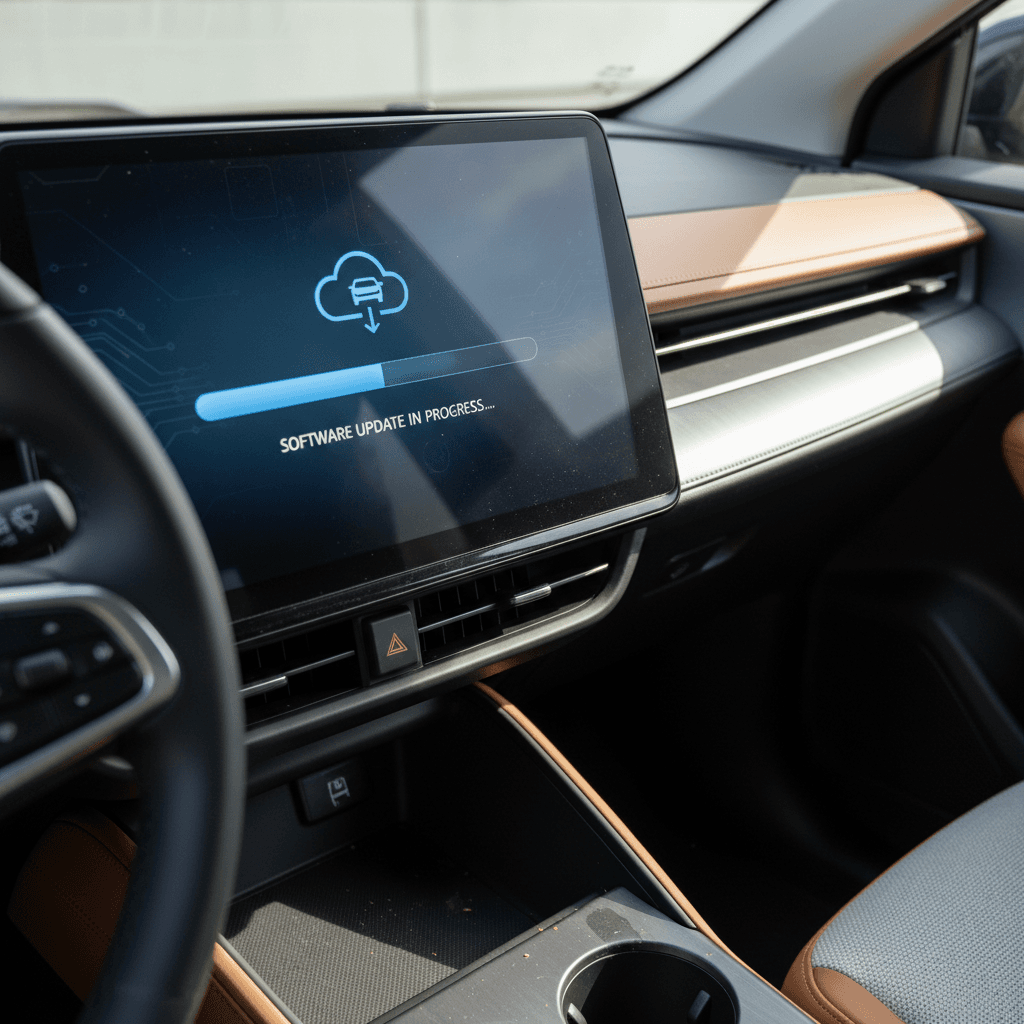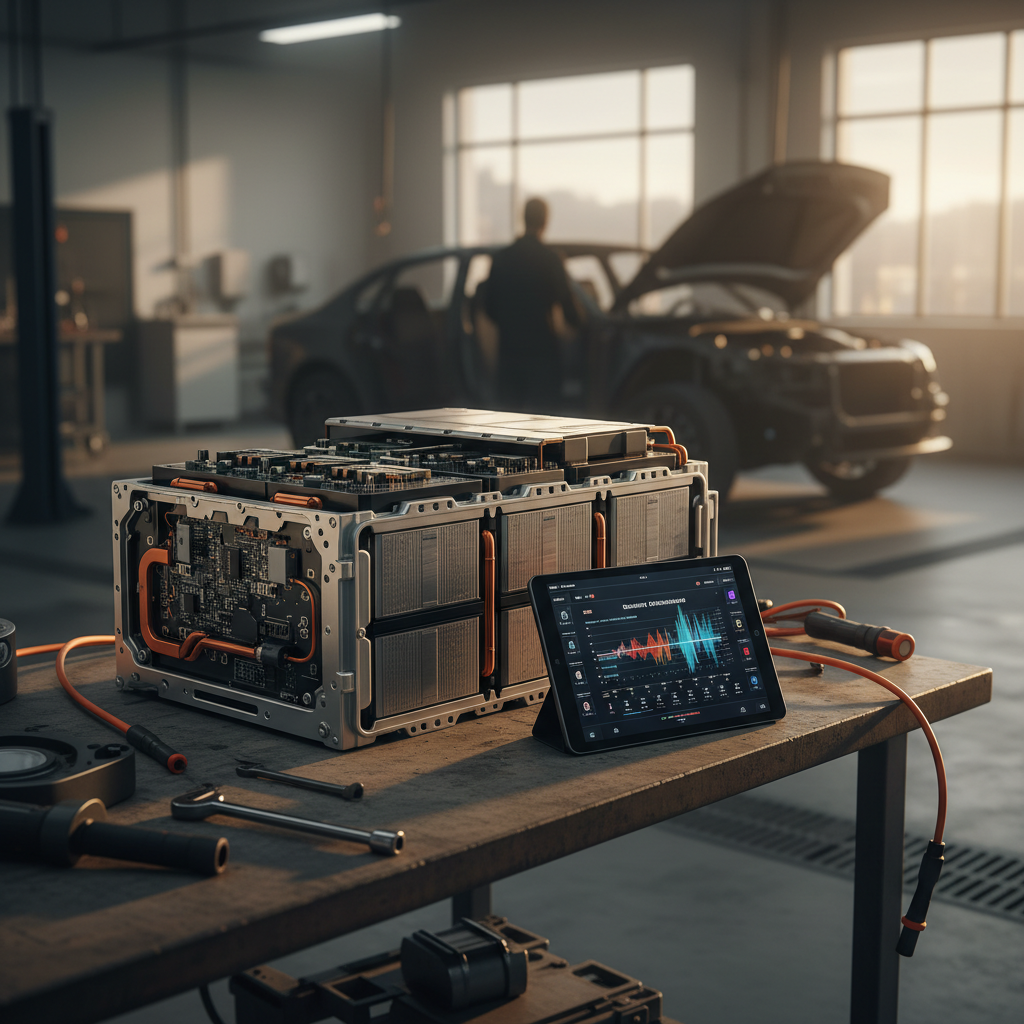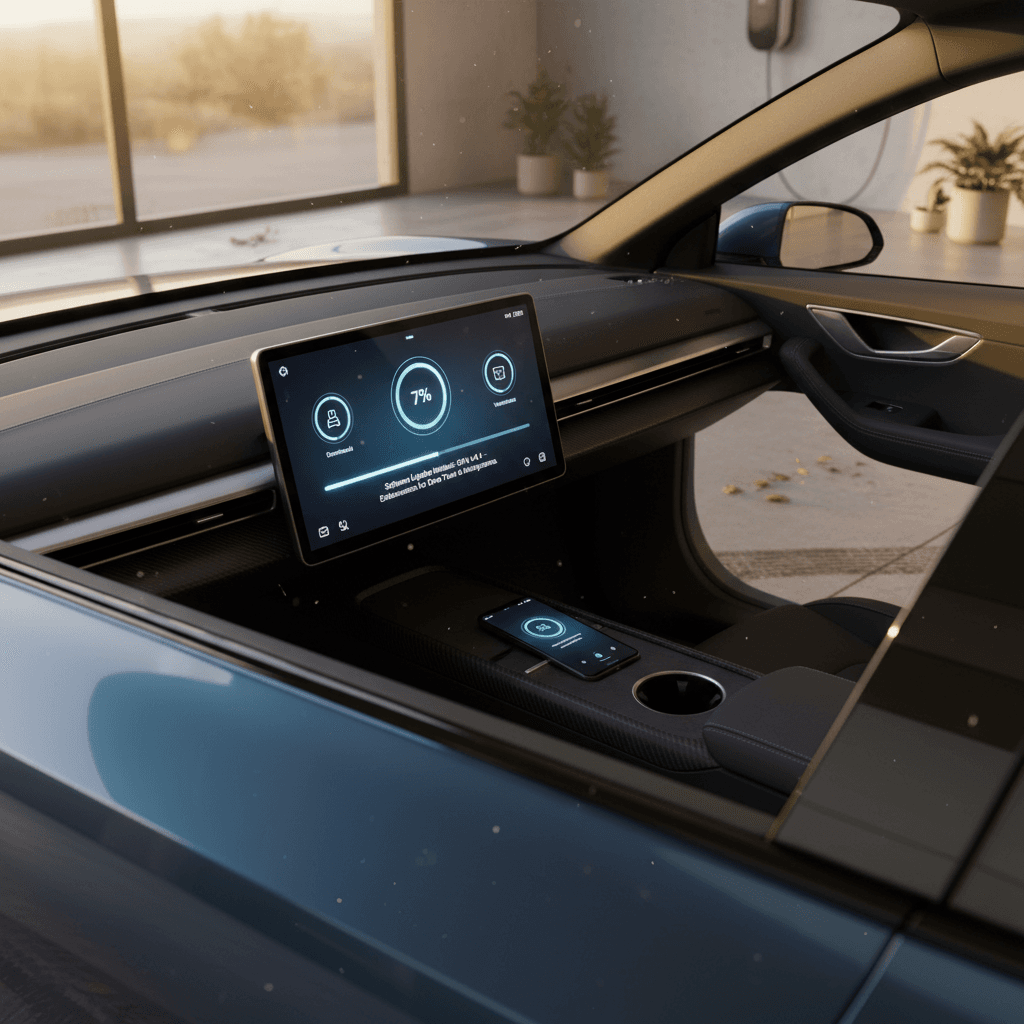
Your electric car is more smartphone than sedan. That means software updates can change how your EV drives, charges, and keeps you safe, sometimes overnight. But “EV software updates how to do” is still a surprisingly murky topic, especially if you didn’t grow up flashing firmware for fun.
Good news for EV owners
Why EV software updates matter now
A decade ago, a “software update” might’ve meant a map refresh for your navigation system. Today, automakers push over‑the‑air (OTA) updates that can tweak battery management, add driver-assistance features, fix bugs, and even resolve safety recalls without a service visit. Globally, EV and connected-car growth has turned OTA into big business, with software updates now the dominant slice of the automotive OTA market and battery-electric vehicles showing some of the fastest growth in update capability.
The rise of over‑the‑air car updates
Think of updates as free range and safety
What EV software updates actually change
Typical EV systems that get updated
Not every brand touches all of these over the air, but most modern EVs update at least some of them.
Driving & performance
- Throttle response and regenerative braking tuning
- Stability and traction‑control logic
- Ride and handling tweaks on adaptive suspensions
Battery & charging
- Battery management system (BMS) calibration
- Fast‑charging curves and peak power
- Preconditioning behavior before rapid charging
Safety & driver assist
- Lane‑keeping and adaptive cruise behavior
- Collision‑avoidance tuning and camera updates
- Bug fixes for warning systems
Infotainment & maps
- New apps and streaming features
- Navigation maps and charger locations
- Voice control and Bluetooth stability
Connectivity & apps
- Phone‑as‑key improvements
- App remote‑control reliability
- Data‑privacy and security patches
Behind‑the‑scenes firmware
- Control modules for power electronics
- Charging hardware firmware
- Diagnostics and error‑logging changes
Not every update is optional
How EV software updates work: OTA vs. USB
Over‑the‑air (OTA) updates
Most modern EVs, Tesla, Rivian, Lucid, newer Hyundai/Kia, Ford, VW ID models, and more, support OTA updates via built‑in cellular or Wi‑Fi.
- The car downloads the update while you drive or while it’s parked and online.
- When it’s ready, you’ll see a prompt asking you to schedule or start installation.
- The car usually has to be parked, in Park, and often not charging during install.
Think of this as your EV acting like a smartphone on wheels.
USB or dealer‑installed updates
Some brands, especially older EVs, still rely on updates via USB drive or dealer laptop for bigger jobs:
- You or the dealer download a file to a USB stick.
- The car reads that file through a port in the cabin or trunk.
- In other cases, only a dealer scan tool can apply major firmware updates.
This is still common for map updates, early EVs, and some legacy systems.
SOTA vs. FOTA, why it matters
How to check if your EV has an available software update
Quick checklist: find out if your EV has an update waiting
1. Open your car’s app
Most EVs show pending updates in their companion app (Tesla, FordPass, myVW, Kia Connect, Hyundai Bluelink, etc.). Look for a section labeled <strong>Software</strong>, <strong>Updates</strong>, or <strong>Vehicle Status</strong>.
2. Check the in‑car menu
On your central screen, dig into Settings > Software, System, or Vehicle. Some brands hide updates in the navigation or connectivity menu. If there’s a “Check for updates” button, tap it.
3. Confirm your account & consent
Several automakers require you to accept <strong>terms of service</strong> or “consent for OTA downloads” before they’ll push anything. If you haven’t done this, the car can’t pull updates in the background.
4. Verify connectivity
Your EV typically needs either Wi‑Fi (at home) or solid cellular coverage to download updates. Some brands only allow large downloads over Wi‑Fi to avoid data charges.
5. Look for release‑note emails
Automakers may email you when a major update is available, especially if it’s safety‑related. Log in to your owner portal and look for a software‑updates page.
6. Call or chat with support
If you’re unsure whether a specific version should be on your car, your dealer or brand support line can usually confirm by VIN and tell you whether it’s OTA or dealer‑only.
Step-by-step: how to do an over-the-air EV software update
- Read the release notes first. In the app or on‑screen, skim what the update does. Watch for notes about charging behavior, driver‑assist changes, or known issues.
- Plan a time window. Many OTA installs take 10–30 minutes; big ones can run up to an hour. Choose a window when you don’t need the car.
- Park safely, with enough battery. Most EVs require the car to be in Park, parking brake set, doors closed, and battery at a minimum charge level (often around 30–50% for EVs).
- Follow on‑screen prompts exactly. When you shut the car off, you’ll see an “Install now / Later” prompt. Confirm that you understand the car will not be drivable during installation.
- Leave the car alone. During the install, don’t open doors repeatedly, press the start button, or plug/unplug the charger unless instructions say it’s allowed. Lights and screens may flash; that’s normal.
- Wait for confirmation. When you next start the car, you should see an “Update successful” message and a revised software version number.
- Test key features. On your next drive, pay attention to regen feel, driver‑assist behavior, charging, and infotainment responsiveness. If something feels wrong, document it right away.

Schedule overnight updates when possible
How to do a USB or dealer software update
Not every EV, and not every kind of update, can be done over the air. Some brands still require you to install certain updates via USB stick or have a dealer handle them with specialized tools. Here’s how to approach those without pulling your hair out.
Steps for doing a USB‑based EV software update
1. Confirm the update method
In your owner portal or manual, verify whether the update you want is OTA, USB, or dealer‑only. Navigation map updates, for example, are still often USB‑based.
2. Use a reliable USB drive
Follow the brand’s exact requirements: drive size, formatting (FAT32, exFAT), and folder structure. A cheap or corrupted drive is a guaranteed way to get errors.
3. Download from the official site
Never download vehicle firmware from third‑party sites. Log in to your official owner account, download the correct file for your VIN, and verify the file size matches the instructions.
4. Follow the in‑car procedure
Insert the USB drive into the specified port (often a data‑capable USB‑A). Navigate to the update menu and follow prompts to begin. Expect the car to be undriveable during install.
5. Don’t remove the drive early
Removing the USB drive or cycling power while the car is writing firmware can brick a module. Wait until the screen clearly states that the update is complete and it’s safe to remove.
6. Dealer as a backup plan
If the process fails, or if the update involves safety‑critical modules, don’t keep experimenting. Schedule a service visit so the dealer can complete or roll back the update safely.
Never try “homemade” firmware
Brand examples: Tesla, Hyundai/Kia, VW ID.4, Ford and more
How popular EV brands typically handle software updates
Exact steps vary by model and year, but this snapshot gives you a feel for how different automakers approach EV updates today.
| Brand | Typical method | What’s usually updated OTA | Owner involvement |
|---|---|---|---|
| Tesla | Primarily OTA via Wi‑Fi/cellular | Driving behavior, range tweaks, charging, safety, infotainment, new features | Approve/schedule in car or app; car handles everything else |
| Hyundai / Kia | Mix of OTA and USB/dealer depending on year | Newer models increasingly update infotainment, navigation, and some control units OTA; older ones often require USB for maps or dealer for firmware | Accept terms in app, confirm install in car; older cars may mean a trip to the dealer |
| Volkswagen ID.4 | OTA for many software versions; some still dealer‑only | Infotainment, charging logic, bug fixes, some driver‑assist updates | Must have myVW app, consent to OTA, keep car online; tricky cases may get shifted to dealers |
| Ford (Mach‑E, F‑150 Lightning) | Mostly OTA for eligible modules | BlueCruise / driver assist, infotainment, bug fixes, sometimes charging behavior | Accept update via FordPass app or in‑vehicle prompt; some recalls still require dealer |
| Other legacy brands | Often a hybrid of OTA for infotainment and dealer‑only for deep firmware | Maps, apps, and minor tweaks OTA; safety‑critical systems still in the shop | Watch for both app prompts and mailed recall notices |
Always confirm specifics in your owner’s manual or app. Older model years may rely more on dealer or USB updates than newer ones.
“In 2024 alone, more than 13 million vehicles were recalled for software issues. Over‑the‑air updates aren’t perfect, but they’re often the fastest way to keep complex cars safe and current.”
Safety tips and what NOT to do during an EV update
5 things to avoid while your EV is updating
- Don’t try to drive the car. Most EVs will either refuse to shift out of Park or could behave unpredictably mid‑update.
- Don’t cycle the power repeatedly. Turning the car on and off can interrupt flashes to critical control units.
- Don’t keep opening doors and pressing buttons. Many updates expect the car to “go to sleep.” Let it.
- Don’t charge if the brand warns against it. Some manuals explicitly say not to fast‑charge during certain installs.
- Don’t ignore error messages. A failed update isn’t something to shrug off, capture photos and call support.
- Always start updates with plenty of battery charge on an EV, aim for at least 40–50% unless your manual says otherwise.
- Park in a well‑ventilated, safe place where the car can sit undisturbed for the entire window.
- If you’re doing a big trip soon, consider waiting a day or two after a major update in case early bugs surface.
- For critical safety or powertrain updates, prioritize installing them even if they’re inconvenient, they’re there for a reason.
- If you’re buying a used EV, ask the seller or dealer when the last update was installed and whether any recalls are still open.
Troubleshooting common EV software update problems
If your EV update doesn’t go smoothly…
Most problems fall into a few predictable buckets.
Problem: Update won’t download
- Check cellular or Wi‑Fi strength; move the car closer to your router or park where you have better signal.
- Verify that data services or connected‑car subscriptions are active if required.
- Make sure you’ve accepted all app and in‑car terms of service.
Problem: Update won’t start installing
- Battery may be too low; charge to the brand’s recommended threshold.
- Doors, hood, or trunk may be open; close everything and try again.
- Steering wheel might not be locked, or parking brake not set; follow on‑screen hints carefully.
Problem: Update fails or errors out
- Take photos of every warning message and version number.
- Reboot infotainment if recommended in your manual.
- If failure repeats, contact support or a dealer rather than forcing it.
Problem: Car behaves differently after update
- Slight changes in regen or driver‑assist tuning may be intentional; re‑read the release notes.
- If something feels unsafe, unexpected braking, power loss, or charging faults, stop driving and call your brand’s roadside or support line.
Document issues right away
Used EVs and software updates: what buyers should know
With millions of EVs now on the road, the used market is booming. That’s good news for shoppers, but only if the car you’re eyeing has been kept current on its software. A neglected update history can mean lingering bugs, missing safety fixes, and poorer charging performance than the same model that’s been kept up‑to‑date.
Software‑smart tips when buying a used EV
Ask for software version screenshots
Have the seller photograph the Software or About screens that show current versions. Compare them against the latest version listed on the automaker’s owner site, if available.
Check for open recalls
Use the VIN on the NHTSA site or the brand’s owner portal to see whether any safety‑related software recalls are open. These should be addressed before or as a condition of sale.
Verify that accounts can transfer
Some connected‑car services and apps require the previous owner to release the car from their account. Make sure your future EV can be added to <strong>your</strong> profile so you keep getting OTA updates.
Test charging and driver‑assist features
On a test drive, pay attention to DC fast‑charging behavior, lane keeping, and adaptive cruise. Weirdness here can sometimes point to outdated or failed updates.
Lean on independent diagnostics
A specialized EV inspection, like the <strong>Recharged Score</strong> you get with vehicles bought through Recharged, includes battery‑health data and can surface faults that might relate to failed or missing updates.
How Recharged helps here
FAQ: EV software updates how-to
Frequently asked questions about EV software updates
Key takeaways before you hit “Install now”
EVs are rolling computers, and software updates are the quiet heroes keeping them safe, efficient, and pleasant to live with. Once you understand how updates work, OTA versus USB, what they change, and how to prep your car, the whole process becomes mundane in the best possible way.
Before you tap that Install now button, make sure you’ve checked your connection, battery level, and schedule. Read the release notes, park the car somewhere it can be left alone, and resist the urge to fuss with doors and switches while it works. If something does go sideways, document the details and get your brand or dealer involved quickly.
And if you’re shopping for a used EV, don’t treat software as an afterthought. Ask about update history, open recalls, and charging behavior, and lean on tools like the Recharged Score Report to understand how that car has been cared for. A well‑maintained EV, with a healthy battery and up‑to‑date software, can feel like a brand‑new car every few months, without ever visiting a showroom.